TEST CASE DESIGN
In this blog P-05:Test Case Design, We are going to look about testing an android application.
CONTENTS
- White box testing
- Black box testing &
- Summary of Changes

We chose five components / classes for white box testing and five functional requirements for black box testing. The five components were.
- (I). Enter 'PIN'
- (II). Add 'COURSE'
- (III). START DATE
- (IV). END DATE
- (V). RULES
Let us see every component with both Black box and white box testing.
(I). Enter 'PIN'
White Box testing
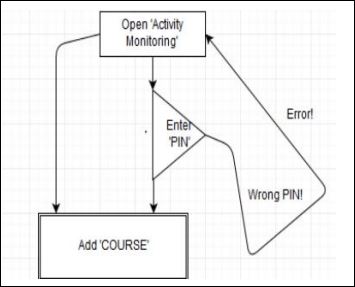
In White box testing, When the user opens the activity monitoring application, There ae two ways after that. One is to continue with the four digit password and the other one is to open the application directly and add tasks. Incase of wrong pin entries, the application will revert the user back to the first page.
Black box testing
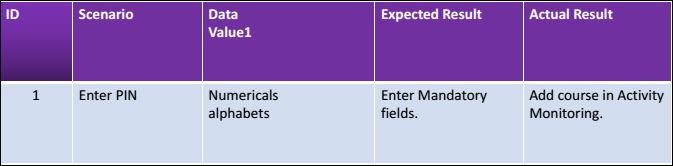
In Black box testing, the scenario we are taking for test is Enter 'PIN', the data values we use to enter PIN are Numericals or alphabets. The result of this testing gives access to the next page in the application called 'Add course'.
(II). Add course
White Box testing
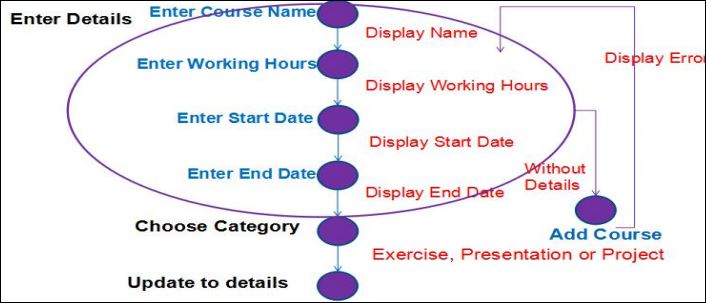
In add course component, the application ask the user to enter the course name either manually or by selecting from the custom option. Then, the user will enter the working hours along with start date and end date. Out of these icons, if there is any error. For example, if you enter wrong order dates, it will revert the page again to main add course page. Apart from that the testing of this component was successful.
Black box testing
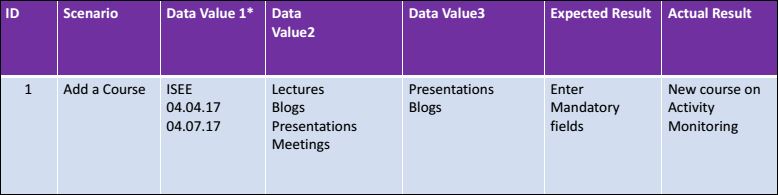
In Black box testing, we added a course called "ISEE" with a period of date from 04.04.2017 till 04.07.2017 with date values are Lectures, blogs, presentations and meeting. The actual and expected results are same. It creates an new course in Activity monitoring.
(III). Start Time
White box testing
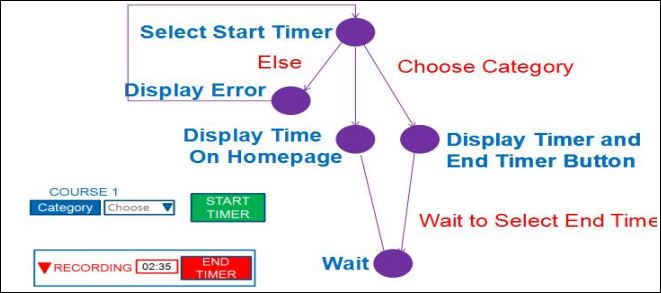
We have an component called Start time and end time just to calculate the amount of the time spent on a course. It will help the user to manage their work in time and improve knowledge.In this component, Select a time(if not, display error), or chose time by yourself, it will just display it on the home page along with the course you have entered.There is also an option called chose time, it diplayed both start time and end time button.
Black box testing
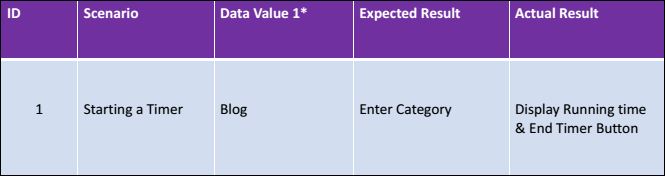
The scenario in this component is "Starting a timer", the data value we entered is blog(for exapmple). Then along with the start time, the task time begins.
(IV). End time
White box testing
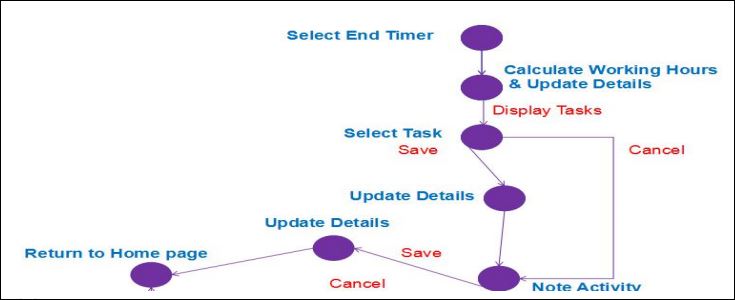
In End time, The user will decide to end the task and enter a time that may he/she requires for that course. for example, we considered blog in start time, here we enter the end time and it will help the user to manage works in time. Once the user enters the end time, it will calculate the total time from start time till end time and update it to the user. Then the user will save the task. Likewise, user can add multiple task and manage timings. The user can also add additional notes or avoid it upon their interest. This all were tested and results were executed.
Black box testing
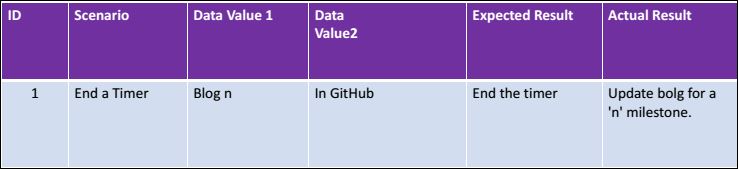
Same like start time in black box testing, we take blog as an example date and assigned an end time. The time will be started running and the user can adjust the blog work accordingly.
(V). Date
White box testing
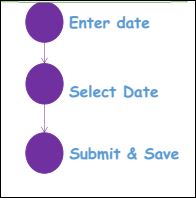
We have our last component for testing called Date", In this the user can enter the date they create the course or tasks either. The user can select the date manually from the calender the application produces. Once the user selects the day, month and an year. It submit the date and save the date with the course. It will be used for ordering the tasks or for the knowledge of user.
Black box testing
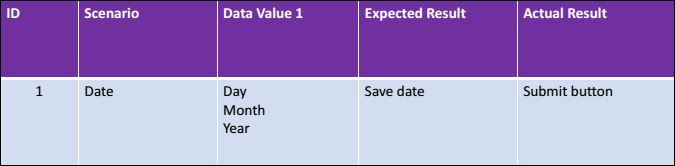
Date will be the scenario, along with Day(numericals), month(alphabets) and an year(numericals) are date values. The expected result is save date then click submit button.
Summary Of Changes
After a meet with the customer, we have got to change something from our implementation. They were,
- Pin credentials are not Mandatory now.
- Stop date changed to End date.
Blog Written by : Arun Kumar Kandhasamy. Reviewed by : Sanjay Kola.