layout: post
title: “ISEE 2018 – Implementation and GUI Design”
date: 2018-06-19
——-
IMPLEMENTATION and GUI DESIGN
Aim:
To build GUI and implement Android App for user requirements by following proper coding conventions.
Coding Conventions:
- Good Comments
- Indentation suitable to App with limited length
- Length of methods and classes as per team standard
Team Standard:
- Comments should give basic purpose of classes and methods
- Names of Variables,Methods and Classes should meaningful and suitable to Bird tracking requirements.
- Length of Methods and classes should be in limits.
Sample Code:
package com.example.tirup.mainpage;
import android.content.Intent;
import android.support.v7.app.AppCompatActivity;
import android.os.Bundle;
import android.view.View;
import android.view.Menu;
import android.view.MenuItem;
import android.content.Intent;
import android.support.v4.app.DialogFragment;
import android.support.v7.app.AppCompatActivity;
/Creating Main activity which uses the resource file to synchronise to activity class/
public class MainActivity extends AppCompatActivity {
@Override
protected void onCreate(Bundle savedInstanceState) {
super.onCreate(savedInstanceState);
setContentView(R.layout.activity_main);
}
/* This method is used for the navigation to ‘bird details’ activity*/
public void onButtonClick(View v) {
if (v.getId() == R.id.birddetailsid) {
Intent i = new Intent(MainActivity.this, birddetailsactivity.class);
startActivity(i);
}
}
/* This method is used for the navigation to ‘settings’ activity*/
public void onSetttingsClick(View v) {
if (v.getId() == R.id.settingsid)
Intent i = new Intent(MainActivity.this, Settings.class);
startActivity(i);
}
}
/* This method is used for the navigation to ‘view data’ activity*/
public void onViewDataClick(View v) {
if (v.getId() == R.id.viewdataid) {
Intent i = new Intent(MainActivity.this, ViewData.class);
startActivity(i);
}
}
}
GUI:
Input Controls:Buttons,Time picker,Date picker
Navigational Components:Search Field
Image view
Text View
Linear Layout,
Relative Layout,Grid Layout
IMPLEMENTATION:
Activities
Activity Adapter
Database Handler
Activity List View
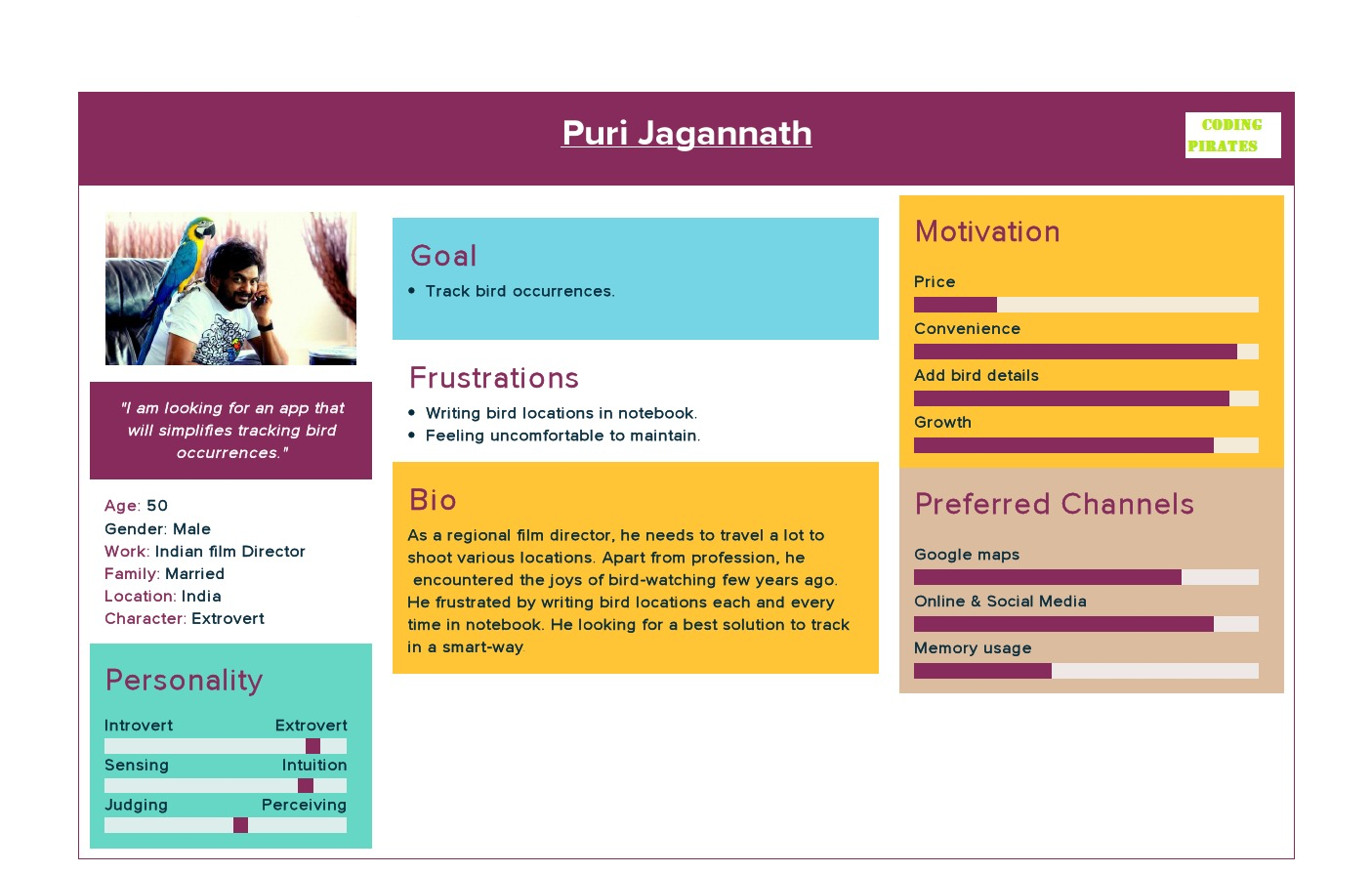
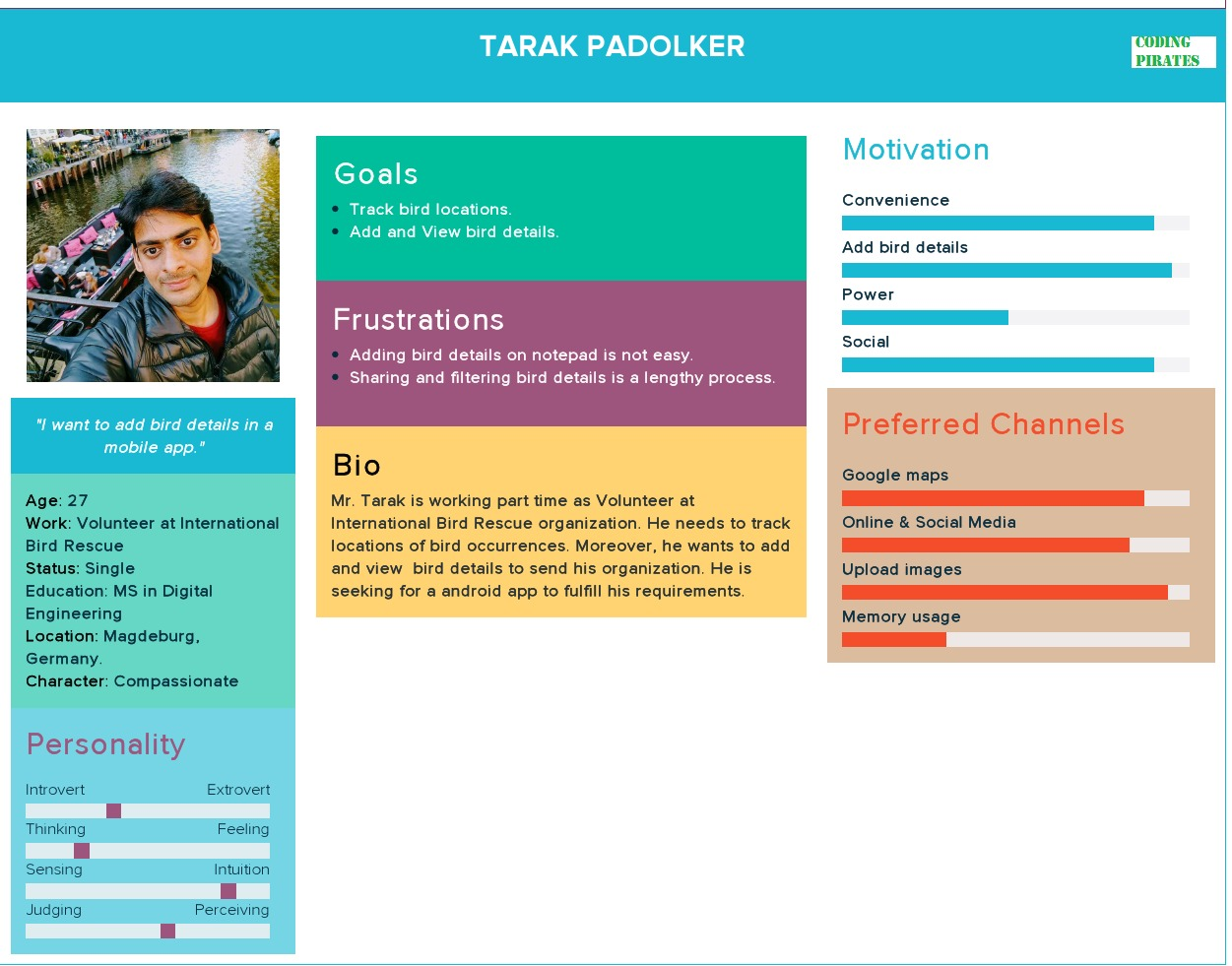
Context of USE:
 .
.
 .
.
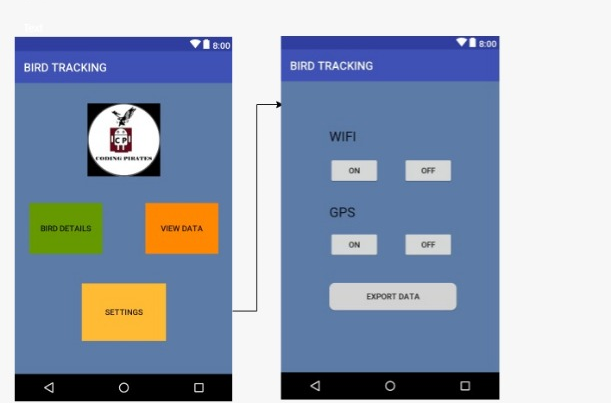
MOCK-UP:
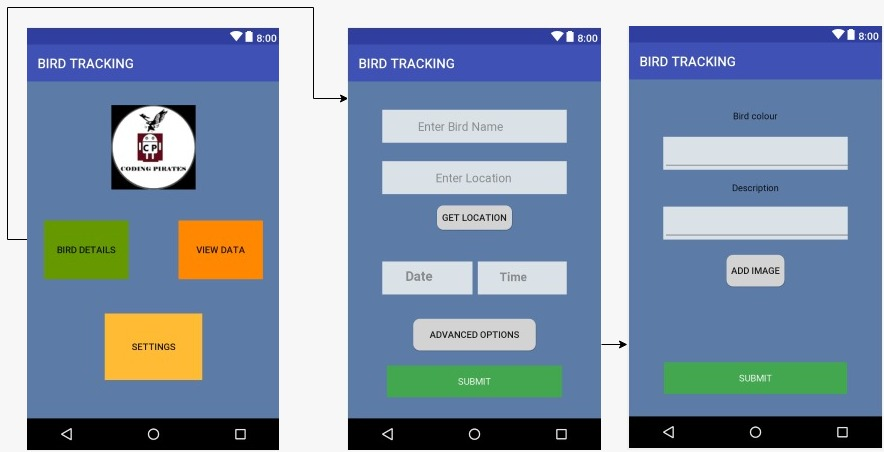
Bird Details Activity:
On clicking Bird Details button in the main page it will go to Bird Details Activity where we can add Details of a Bird.There is an
Advanced Options Button in this Activity, In that page we can add Images of Bird and we can also write some Description about the Bird.
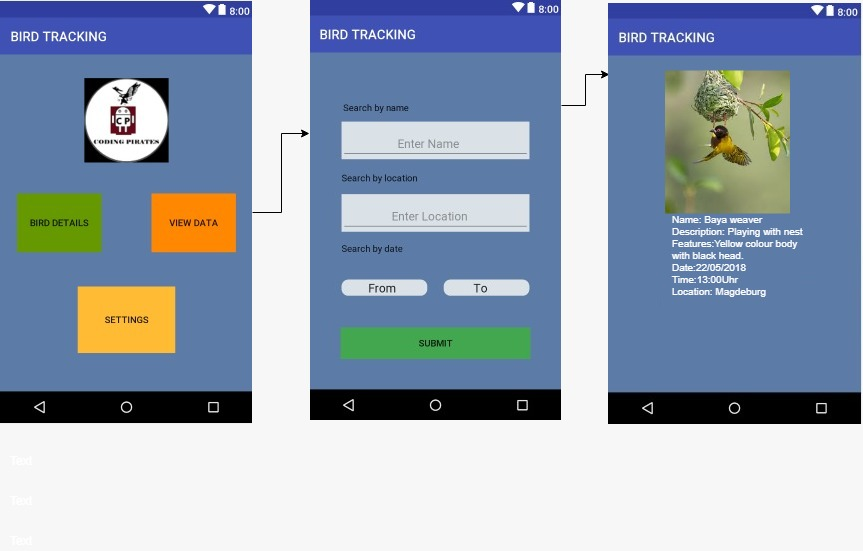
View Data Activity:
On Clicking View Data button in the Main Page it will go to View Data Activity where we can search the Uploaded details of Bird by using the filtering options such as Name,Location,Date.
Settings Activity:
On Clicking Settings button in the Main Page it will go to Settings Activity where we can use GPS and Wi-Fi ON and OFF options.
Upadtes
Keep an EYE on our BLOG for more Information
Author
PRAVEEN PUTTI