Black Box Testing
Welcome to our fifth blog, hope you enjoyed our previous four blogs. Over the past few weeks we have been working on our Next Phase
Whichis Testcase Design. Based on the System Design which we have shown in our previous blog, we have come up with the following test
case designs which would help you all understand our project in a better way.
- (Behavioral Testing)
- Internal structure/design/implementation of the item being tested is not known to the tester.
- This method attempts to find errors in the following categories:
- Incorrect or missing functions
- Interface errors
- Errors in data structures or external database access
- Behavior or performance errors
- Initialization and termination errors
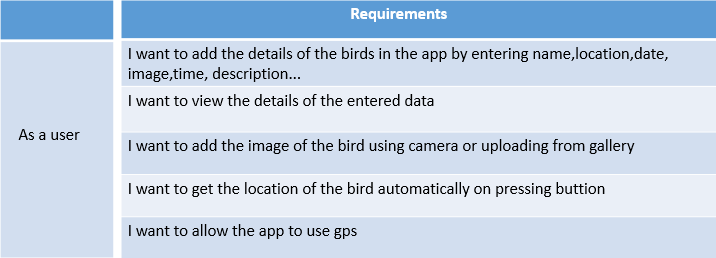
Functional requirements considered for Black box Testing :
Black Box Testing
Requirement 1 :
As a user I want to enter the details of the bird in my application.
Testcase 1:
I want to add a bird details data by selecting name ,location, date, time and some extra description (if nessesary)
Test Process :
Open the application
Click on Add bird details button
Enter the details of the birds
Results:
Toast message “Added Successfully” will displayed on adding data to database.
It can be verified by looking at the history
Requirement 2 :
As a user I want to view the details of the birds entered previously
Test Case 2:
I want to view the previous data entered by filtering name / location / duration
Test Process :
Open the application
Click on view data button
Choose the filtering options w.r.t name/location/duration
Result :
Display of the search result from the database.
Requirement 3 :
As a user I want to get the location automatically on pressing button – Get Location
Test Case 3 :
I want to open the application and enter the location automatically
Test Process :
Open the application
Tap on the Add bird details
In Add bird details page tap on the “Get Location” button
Result :
Current location of the user will be displayed automatically.
Requirement 4 :
As a user I want to get the location automatically on pressing button – Get Location
Test Case 4 :
I want to open the application and enter the location automatically
Test Process :
Open the application
Tap on the ”Add bird details”
In Add bird details page tap on the “Get Location” button
Expected Result :
Current location of the user will be displayed automatically.
Requirement 5:
As a user I want to allow the application to use GPS
Test case 5 :
I want to change the settings of Gps
Test process :
Open the application
Tap on the settings button
In settings click on the toggle button to switch the gps on/off
Expected Result :
Gps will be turned on/off
White Box Testing
(Clear Box Testing/Open Box Testing/Glass Box Testing/Transparent Box Testing/ Code-Based Testing or Structural Testing )
- Internal structure /design/ implementation of the item being tested is known to the tester.
- The tester chooses inputs to exercise paths through the code and determines the appropriate outputs.
- Programming know-how and the implementation knowledge is essential.
- White box testing is testing beyond the user interface and into the nitty-gritty of a system.
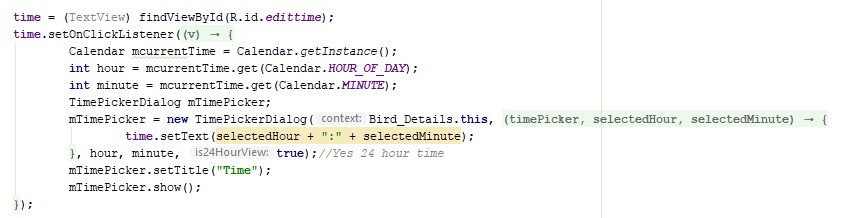
Test Case 1: TimePicker Dialog :
We initiate the view and then perform click event on the time and uses the calender class instance to get the current hours and minutes,then executes the timepicker dialog to select the time.
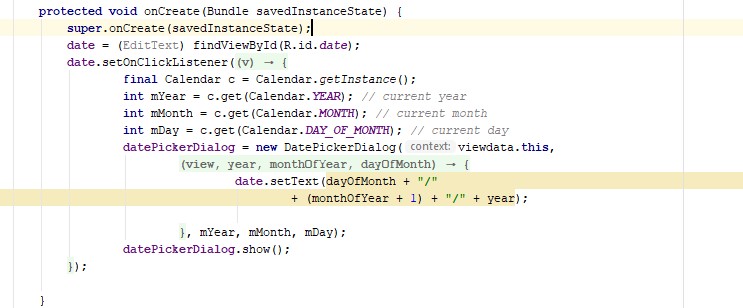
Test Case 2 : DatePicker Dialog :
We initiate the date picker and then performs click event on the date and uses the calender class instance to get the current date, month and year. Then it execute the date picker dalog to select the date.
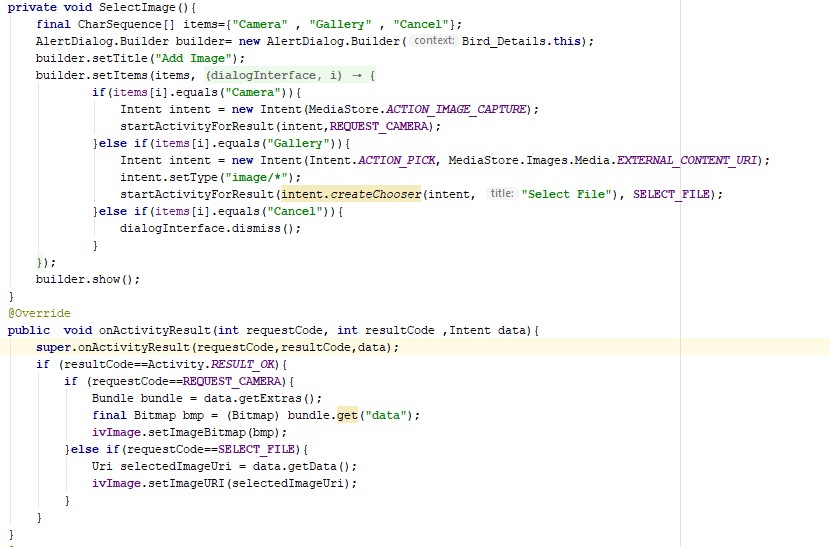
Test case 3 :
We initiate the button to pick the image ,which will shows a dialog with “Camera” , “Gallery”, “Cancel”. An if statement is used to add the image by choosing the above options. If camera is selected it requests camera to open and after clicking it displays in the image view , same else if is used to upload from the gallery or else cancel.
Test case 4 :
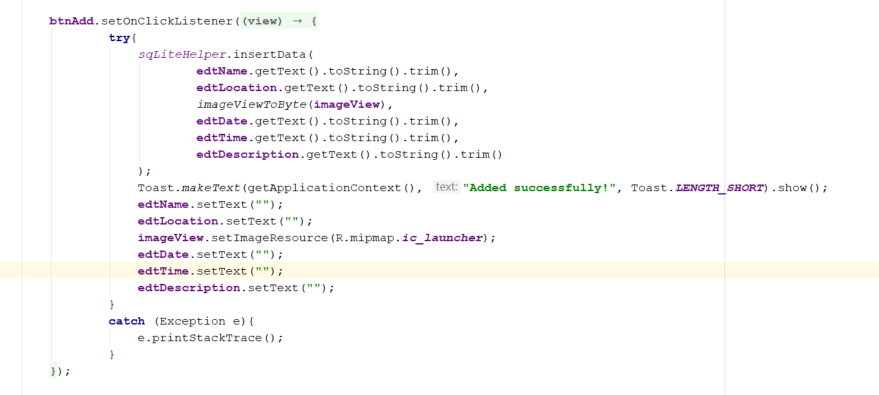
We initialize the button to add the data into the database. Then it try to add the data into sqliteHelper by using insertdata method. If data is added to the database it shows a toast message “Added successfully” then it reset the fields to blank.
Test case 5 :
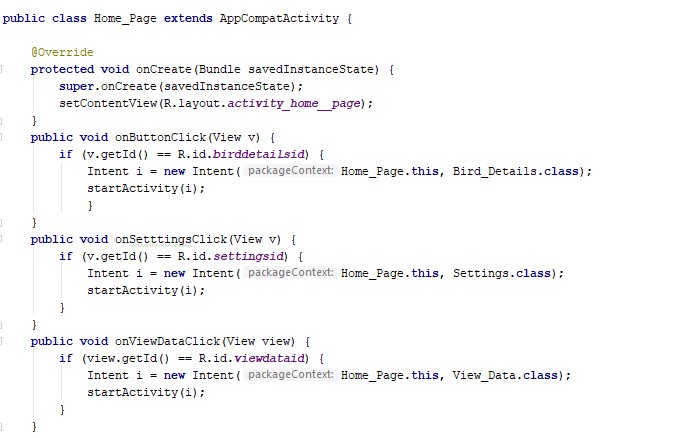
In this home page class we used three on button click events. We initialize the onButtonclick to open the Bird_details activity .on clicking the button if the button id matches the onclick event it opens the requested page. The same executes for the onSettingsclick and onViewDataclick .
Summary of Changes:
We have added a Button in view data Activity to view the total history irrespective of filtering options provided previously.
Author:
Narendra Kumar Anupoju