Welcome to the 5th blog of our wonderful journey, we hope you had enjoyed reading our blogs. While in this blog we are going to discuss test case design with Black box and White box testing in detail. We had done a rigorous study of the software testing and as per the lecture we tried to follow the instructions and protocol for successful application development.
We will be elaborating on following points in our blog:
- What is Software Testing?
- Black Box Testing
- White Box Testing
- Summary of Changes
Software testing is an activity to check whether the actual results match the expected results and to ensure that the software system is Defect-free. It involves execution of a software component or system component to evaluate one or more properties of interest.
Software testing also helps to identify errors, gaps or missing requirements in contrary to the actual requirements. It can be either done manually or using automated tools. Some prefer saying Software testing as a white box and Black Box Testing.
Testing is important because software bugs could be expensive or even dangerous. Software bugs can potentially cause monetary and human loss, history is full of such examples. There are more than 150 types of testing types and still being added.
Black box test refers to a method of software testing. Here, tests are developed based on the specification / requirement. This means that tests are developed without knowledge of the inner functioning/implementation of the system under test. The program is treated as a black box. Only externally visible behavior flows into the test. In contrast, white-box tests are developed with regard to the implemented algorithm. Black box testing prevents programmers from developing tests “around their own mistakes,” overlooking gaps in implementation.
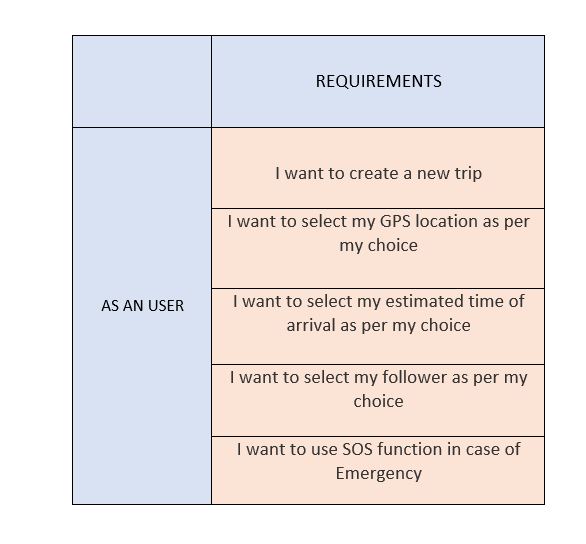
As a user, I want to create a new trip.
Title: New Trip: Create a new trip
Description: A registered user (i.e. after successful login) should be able to create new trip from the main home screen.
Precondition: User must already have registered himself.
Testing Steps:
- Open the Mindpeace Application.
- Click “Create New Trip” button on home screen.
- Select your current location.
- Select your destination.
- Select the Estimated time of arrival.
- Choose your follower.
Expected Result:
- The user should be able to log in successfully, and application should take him directly to home page.
- The user should be able to select “Create New Trip” button.
- The user should be able to enter his/her location, destination, ETA, and select his loving ones from contacts.
As a user, I want to select my GPS location as per my choice.
Title: GPS Location- Locating myself on maps.
Description: A registered user should be able to select his/her current location as per choice. And the information shouldn’t be shared with anyone.
Precondition: User must have allowed access to his location.
Testing Steps:
- Open the Mindpeace Application.
- Click “Create New Trip” button on home screen.
- Select your current location.
Expected Result:
- The user should be able to log in successfully, and application should take him directly to home page.
- The user should be able to select “Create New Trip” button.
- The user should be able to enter his/her location and should be able to place himself in maps as per choice.
As a user, I want to select my GPS location of destination as per my choice.
Title: GPS Location- Locating my destination on maps.
Description: A registered user should be able to select his/her destination location as per choice. And the information shouldn’t be shared with anyone.
Precondition: User must have allowed access to his location.
Testing Steps:
- Open the Mindpeace Application.
- Click “Create New Trip” button on home screen.
- Select your current location.
- Select your desired location.
Expected Result:
- The user should be able to log in successfully, and application should take him directly to home page.
- The user should be able to select “Create New Trip” button.
- The user should be able to enter his/her destination location and should be able to select in maps as per choice.
As a user, I want to select my estimated time of arrival as per my choice.
Title: Estimated time of arrival – Selecting ETA as per my choice.
Description: A registered user should be able to select his/her estimated time of arrival as per choice.
Precondition: User must have selected his current and destination location.
Testing Steps:
- Open the Mindpeace Application.
- Click “Create New Trip” button on home screen.
- Select your current location.
- Select your desired location.
- Select your estimated time of arrival.
Expected Result:
- The user should be able to log in successfully, and application should take him directly to home page.
- The user should be able to select “Create New Trip” button.
- The user should be able to enter his/her estimated time of arrival.
As a user, I want to select my follower as per my choice.
Title: Choosing follower- Selecting my favorite follower.
Description: A registered user should be able to select his/her favorite follower as per choice.
Precondition: User must have allowed access to his contacts.
Testing Steps:
- Open the Mindpeace Application.
- Click “Create New Trip” button on home screen.
- Select your current location.
- Select your desired location.
- Select your estimated time of arrival.
- Select your favorite follower.
Expected Result:
- The user should be able to log in successfully, and application should take him directly to home page.
- The user should be able to select “Create New Trip” button.
- The user should be able to enter his/her location, destination, ETA, and select his loving ones from contacts.
As a user, I want to use SOS function incase of Emergency.
Title: SOS- In case of emergency.
Description: A user should be able to use SOS button incase of any emergency.
Precondition: User must have selected contacts for an emergency.
Testing Steps:
- Open the Mindpeace Application.
- Click “SOS” button.
Expected Result:
- The user should be able to log in successfully, and application should take him directly to home page.
- The user should be able to select “SOS” button.
- The user should be able to contact his family and friends about his/her situation.

It is a software testing method in which the internal structure/design/implementation of the item being tested is known to the tester. The tester chooses inputs to exercise paths through the code and determines the appropriate outputs. Programming know-how and the implementation of knowledge is essential. White box testing is testing beyond the user interface and into the nitty-gritty of a system.
A tester, usually a developer as well, studies the implementation code of a certain field on a webpage, determines all legal (valid and invalid) AND illegal inputs and verifies the outputs against the expected outcomes, which is also determined by studying the implementation code. White Box Testing is like the work of a mechanic who examines the engine to see why the car is not moving.
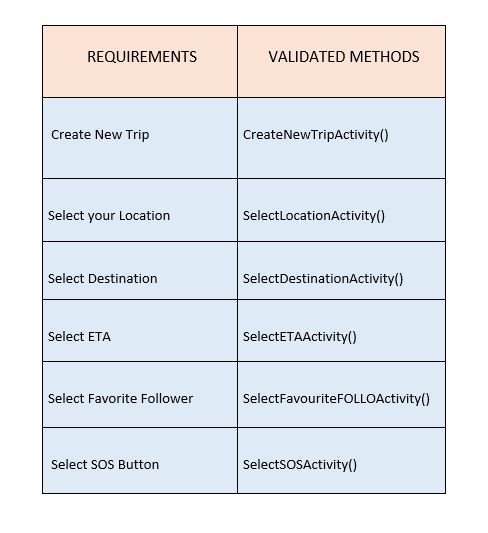
As a user, I want to create a new trip.
Title: New Trip: Create a new trip
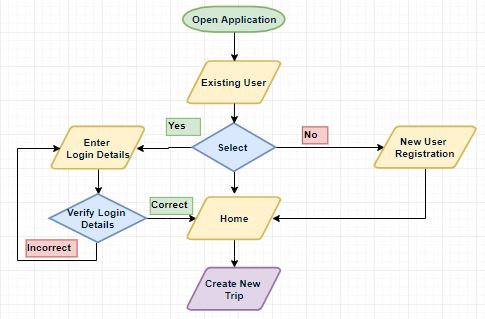
Description: The Below Flowchart shows the possible path and test scenario.
Precondition: User must already have registered himself.
Testing Steps:
- Open the Mindpeace Application.
- Click “Create New Trip” button on home screen.
- Select your current location.
- Select your destination.
- Select the Estimated time of arrival.
- Choose your follower.
Expected Result:
- The user should be able to log in successfully, and application should take him directly to home page.
- The user should be able to select “Create New Trip” button.
- The user should be able to enter his/her location, destination, ETA, and select his loving ones from contacts.
As a user, I want to select my GPS location as per my choice.
Title: GPS Location- Locating myself on maps.
Description: The Below Flowchart shows the possible path and test scenario.
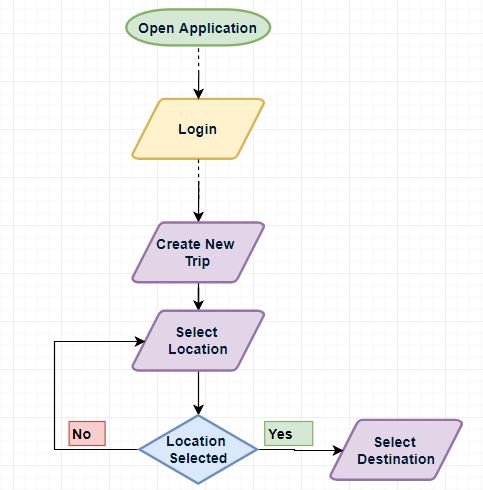
Precondition: User must have allowed access to his location.
Testing Steps:
- Open the Mindpeace Application.
- Click “Create New Trip” button on home screen.
- Select your current location.
Expected Result:
- The user should be able to log in successfully, and application should take him directly to home page.
- The user should be able to select “Create New Trip” button.
- The user should be able to enter his/her location and should be able to place himself in maps as per choice.
Title: GPS Location- Locating myself on maps.
Description: The above Flowchart shows the possible path and test scenario with no selection.
Precondition: User must have allowed access to his location.
Testing Steps:
- Open the Mindpeace Application.
- Click “Create New Trip” button on home screen.
- Select your current location.
- The user didn’t select his/her location.
- Return back to previous selection.
Expected Result:
Return back to home page.
As a user, I want to select my GPS location of destination as per my choice.
Title: GPS Location- Locating my destination on maps.
Description: The Below Flowchart shows the possible path and test scenario.
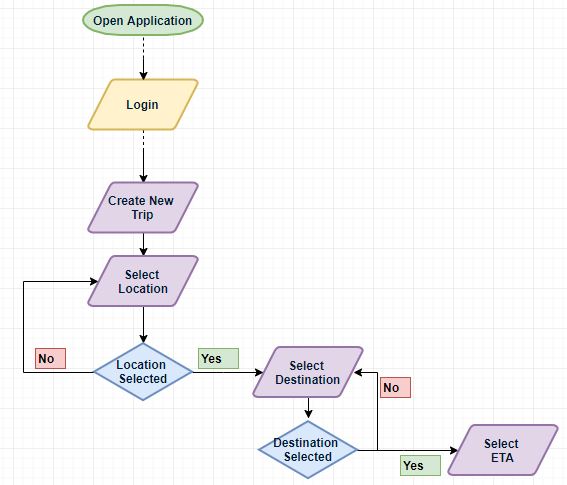
Precondition: User must have allowed access to his location.
Testing Steps:
- Open the Mindpeace Application.
- Click “Create New Trip” button on home screen.
- Select your current location.
- Select your desired location.
Expected Result:
- The user should be able to log in successfully, and application should take him directly to home page.
- The user should be able to select “Create New Trip” button.
- The user should be able to enter his/her destination location and should be able to select in maps as per choice.
Title: GPS Location- Locating my destination on maps
Description: The above Flowchart shows the possible path and test scenario with no selection.
Precondition: User must have allowed access to his location.
Testing Steps:
- Open the Mindpeace Application.
- Click “Create New Trip” button on home screen.
- Select your current location.
- The user didn’t select destination location.
Expected Result:
Return back to current location previous selection.
As a user, I want to select my estimated time of arrival as per my choice.
Title: Estimated time of arrival – Selecting ETA as per my choice.
Description: The Below Flowchart shows the possible path and test scenario.
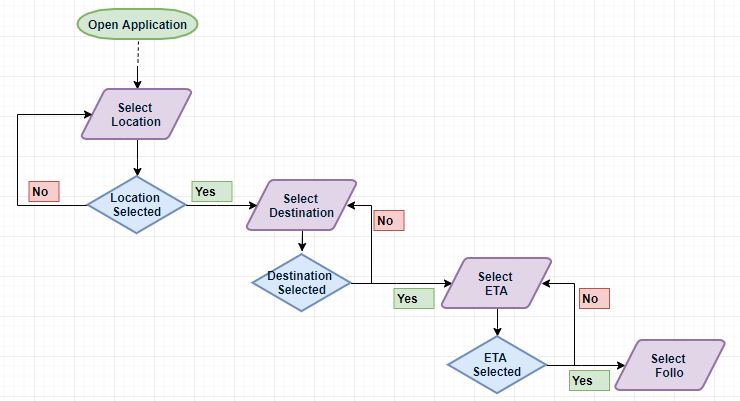
Precondition: User must have selected his current and destination location.
Testing Steps:
- Open the Mindpeace Application.
- Click “Create New Trip” button on home screen.
- Select your current location.
- Select your desired location.
- Select your estimated time of arrival.
Expected Result:
- The user should be able to log in successfully, and application should take him directly to home page.
- The user should be able to select “Create New Trip” button.
- The user should be able to enter his/her estimated time of arrival.
Title: Estimated time of arrival – Selecting ETA as per my choice.
Description: The above Flowchart shows the possible path and test scenario with no selection.
Precondition: User must have selected his current and destination location.
Testing Steps:
- Open the Mindpeace Application.
- Click “Create New Trip” button on home screen.
- Select your current location.
- Select your desired location.
- User didn’t enter an Estimated time of arrival
Expected Result:
Return back to desired location previous selection.
As a user, I want to select my follower as per my choice.
Title: Choosing follower- Selecting my favorite follower.
Description: The Below Flowchart shows the possible path and test scenario.
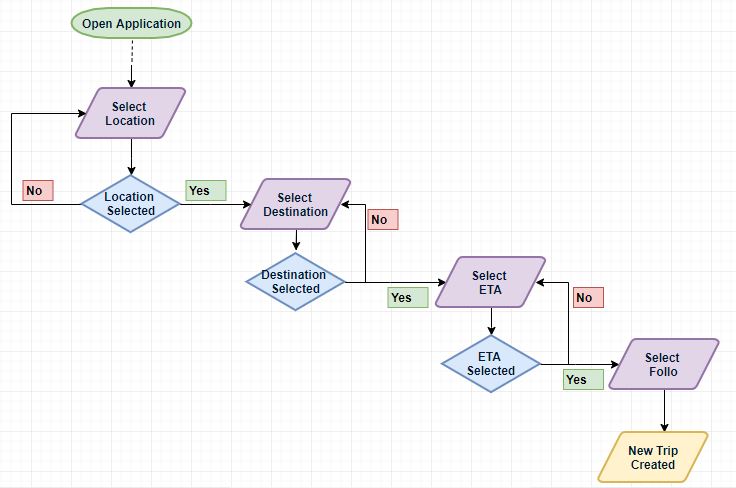
Precondition: User must have allowed access to his contacts.
Testing Steps:
- Open the Mindpeace Application.
- Click “Create New Trip” button on home screen.
- Select your current location.
- Select your desired location.
- Select your estimated time of arrival.
- Select your favorite follower.
Expected Result:
- The user should be able to log in successfully, and application should take him directly to home page.
- The user should be able to select “Create New Trip” button.
- The user should be able to enter his/her location, destination, ETA, and select his loving ones from contacts.
Title: Choosing follower- Selecting my favorite follower.
Description: The above Flowchart shows the possible path and test scenario with no selection.
Precondition: User must have allowed access to his contacts.
Testing Steps:
- Open the Mindpeace Application.
- Click “Create New Trip” button on home screen.
- Select your current location.
- Select your desired location.
- Select your estimated time of arrival.
- User didn’t select a favorite follower
Expected Result:
Return back to estimate time of arrival previous selection.
As a user, I want to use SOS function incase of Emergency.
Title: SOS- In case of emergency.
Description: The Below Flowchart shows the possible path and test scenario.
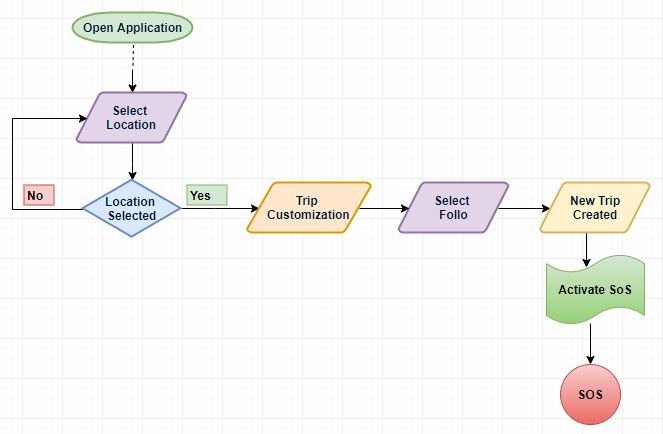
Precondition: User must have selected contacts for an emergency.
Testing Steps:
- Open the Mindpeace Application.
- Click “SOS” button
Expected Result:
- The user should be able to log in successfully, and application should take him directly to home page.
- The user should be able to select “SOS” button.
- The user should be able to contact his family and friends about his/her situation.
We are working hard in coding, we are in constant touch with the customer and trying to make the application as much simple as possible.
We have made some changes in roles and responsibility to reach goal on time.
We thank you so much for your read and support.
Please stay tuned for our final blog next week.
-Team G-APPMAKERS