Working on a project, however short or long it may be, rewards the team with a learning curve innately hard to explain. The sense of ownership which the project or rather its deadlines force upon each of the team member is one worth acquiring. It would certainly be this idea of owning the piece of work one does which brings closure to it or if otherwise, takes it nearer to the goal. Team DroidSutra welcomes you back to our blog - let’s call it the third last one. Thanks for the applause!
This blog entry has the following sections.
… 1. General Test Process
… 1.1. Design Elements
… 1.2. Unit Test cases
… 1.3. Integration Test cases
… 2. White-box testing
… 3. Black-box testing
… 4. Summary of Changes
1. General Test Process
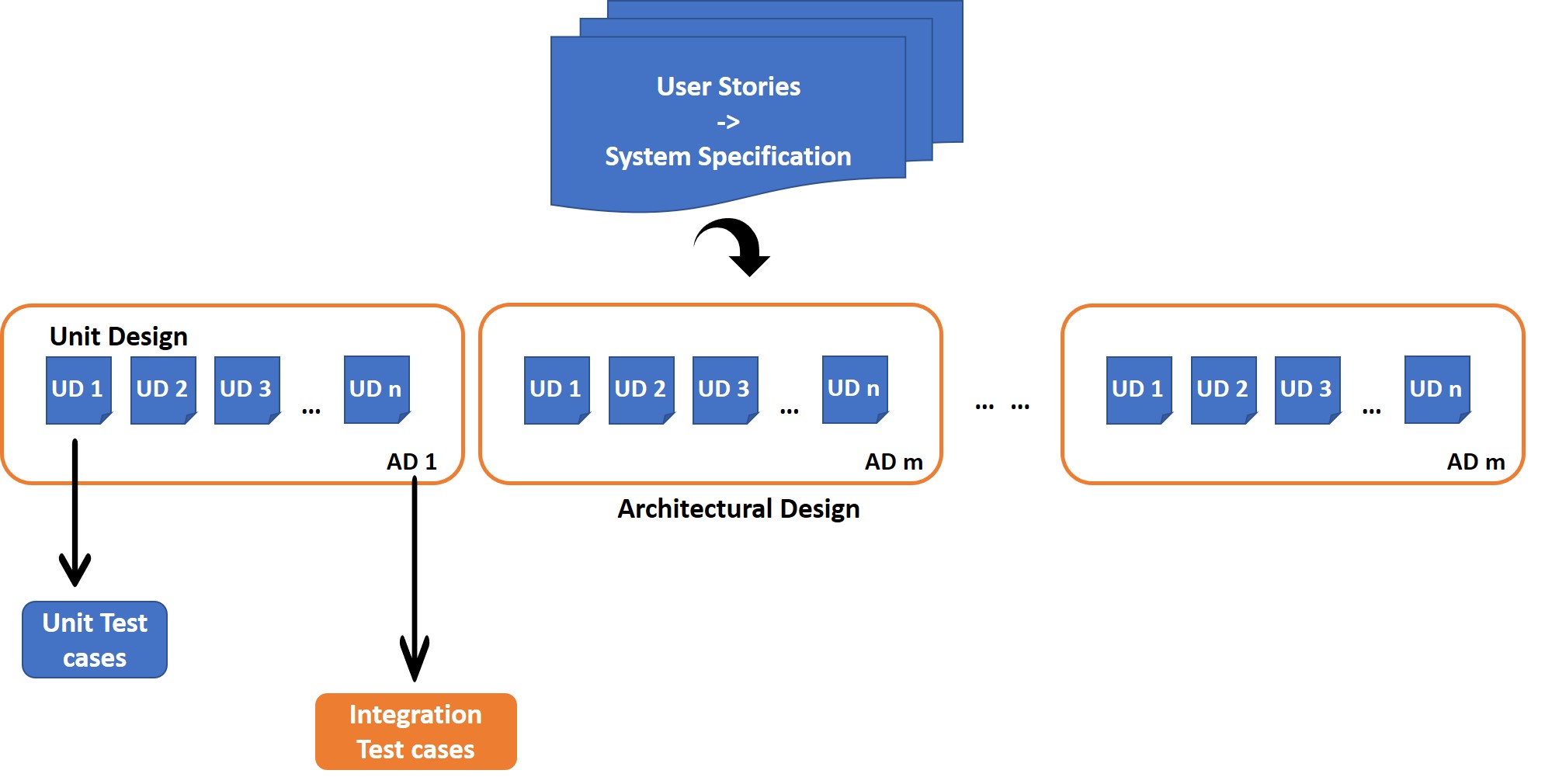
After concluding the discussions about User Stories with the customer, we diligently initiated our Design phase. Architectural Design was initially drafted from which we decomposed our Unit Design. It was from these Unit Design elements we started our Testing phase. Unit Test cases (Functional or otherwise) were identified to check if the Unit design was in place. On completion of the same, we performed integration testing after integrating the successfully pulled-off Unit test cases.
1.1. Design Elements
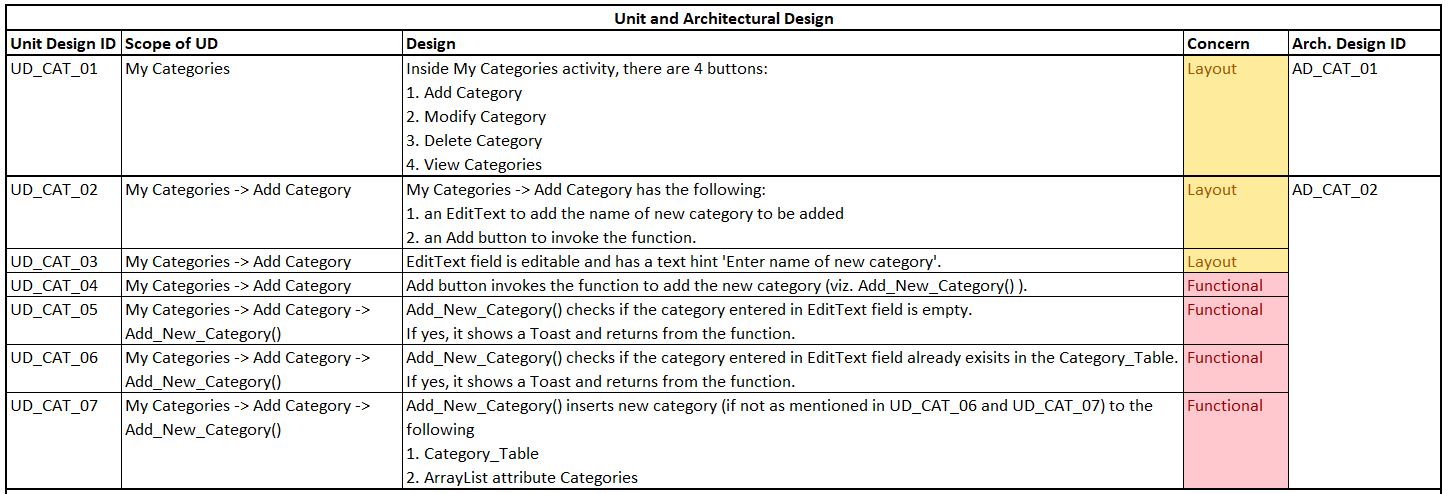
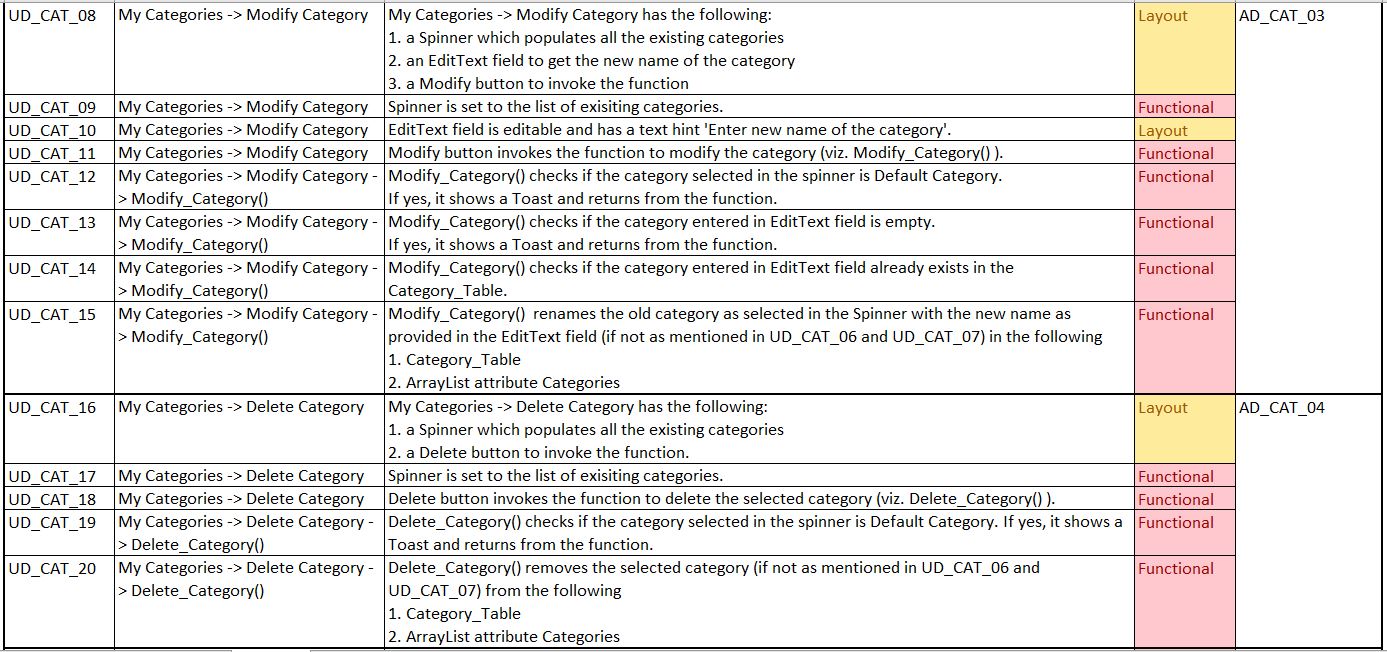
The following picture shows the different Design Elements we devised for our Epic 02 - My Categories.
… Initially, we arrived at the Architectural Design elements. AD_CAT_01 through AD_CAT_04 exhaustively describe how we designed the activity ‘My Categories’.
… Further, we decomposed these ADs to Unit Design elements.
As an example, AD_CAT_02 explains our design for the intent ‘Add Category’. This has been decomposed into UD_CAT_02 through UD_CAT_07 which explain each specific unit in the intent. UD_CAT_02 and UD_CAT_03 are design elements with a layout perspective - it speaks about the placement and number of buttons, spinners and EditText fields in the activity. While, UD_CAT_04 through UD_CAT_07 describe the functional design of the method Add_New_Category() within the ‘Add Category’ intent.
Layout design elements were further tested as part of manual review while each of the functional design elements have been tested with an appropriate Unit test case.
1.2. Unit Test cases
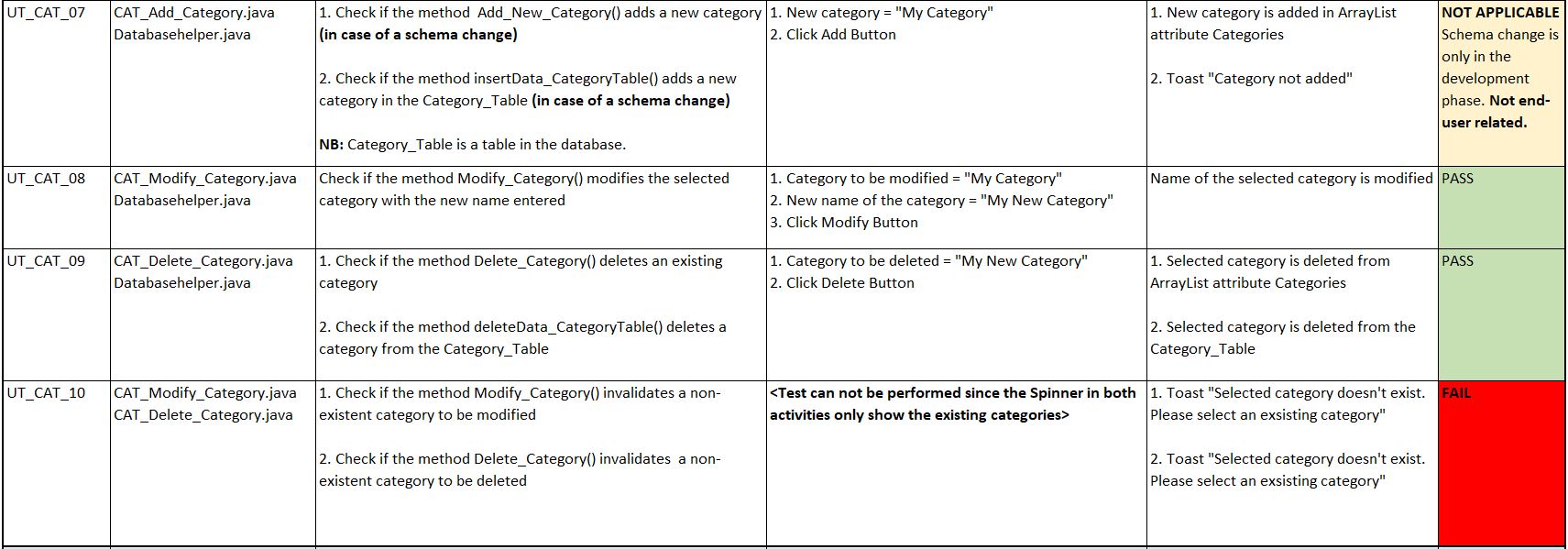
For each Unit Design ID we arrived at a suitable Unit Test case. The following picture shows the different Unit test cases and how they are mapped against the corresponding Unit Design IDs.
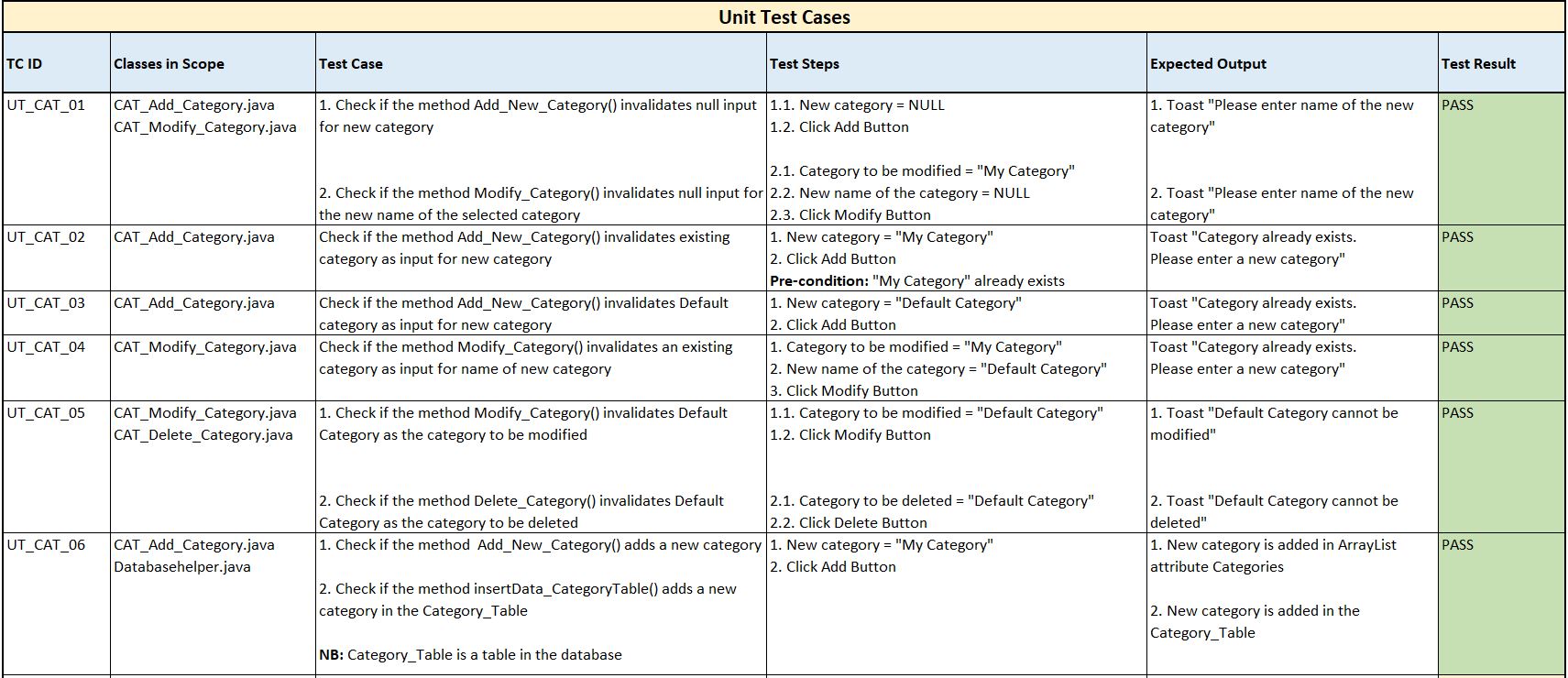
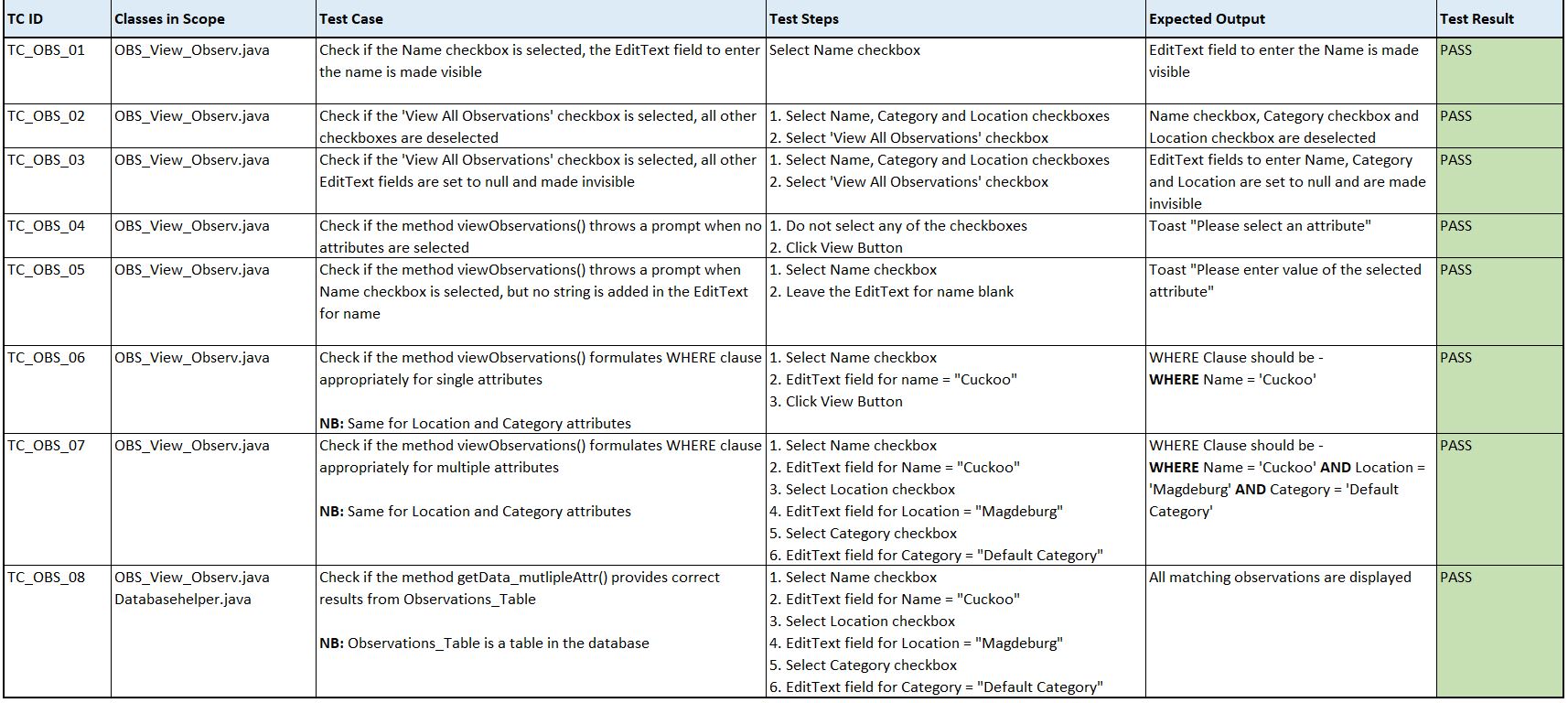
These are the Unit Test cases for our Epic 03 - My Observations.
1.3. Integration Test cases
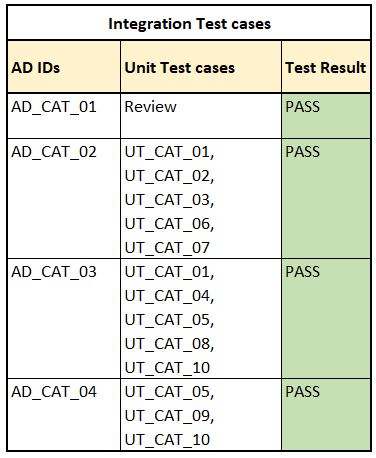
Integration testing was done by integrating Unit Test cases corresponding to a particular AD. The test result was computed as ‘PASS’ if all the Unit Test cases gave a ‘PASS’. The following table populates how Integration testing was performed.
2. White-box testing
White-box testing is performed with the clear idea of the program logic. A few of our test cases worth a note are described below.
UT_CAT_01 -This test case checks if the methods in CAT_Add_Category.java and CAT_Modify_Category.java activities invalidate a null input from the user. As mentioned in the test steps, if the user clicks Add button in CAT_Add_Category.java (or Modify button in CAT_Modify_Category.java) without entering a string value in the EditText field intended to get the user input for new category (or the new name of the category to be modified), then a Toast appears with the message “Please enter name of the new category”. This test case refers back to Unit design elements UD_CAT_05 and UD_CAT_13.
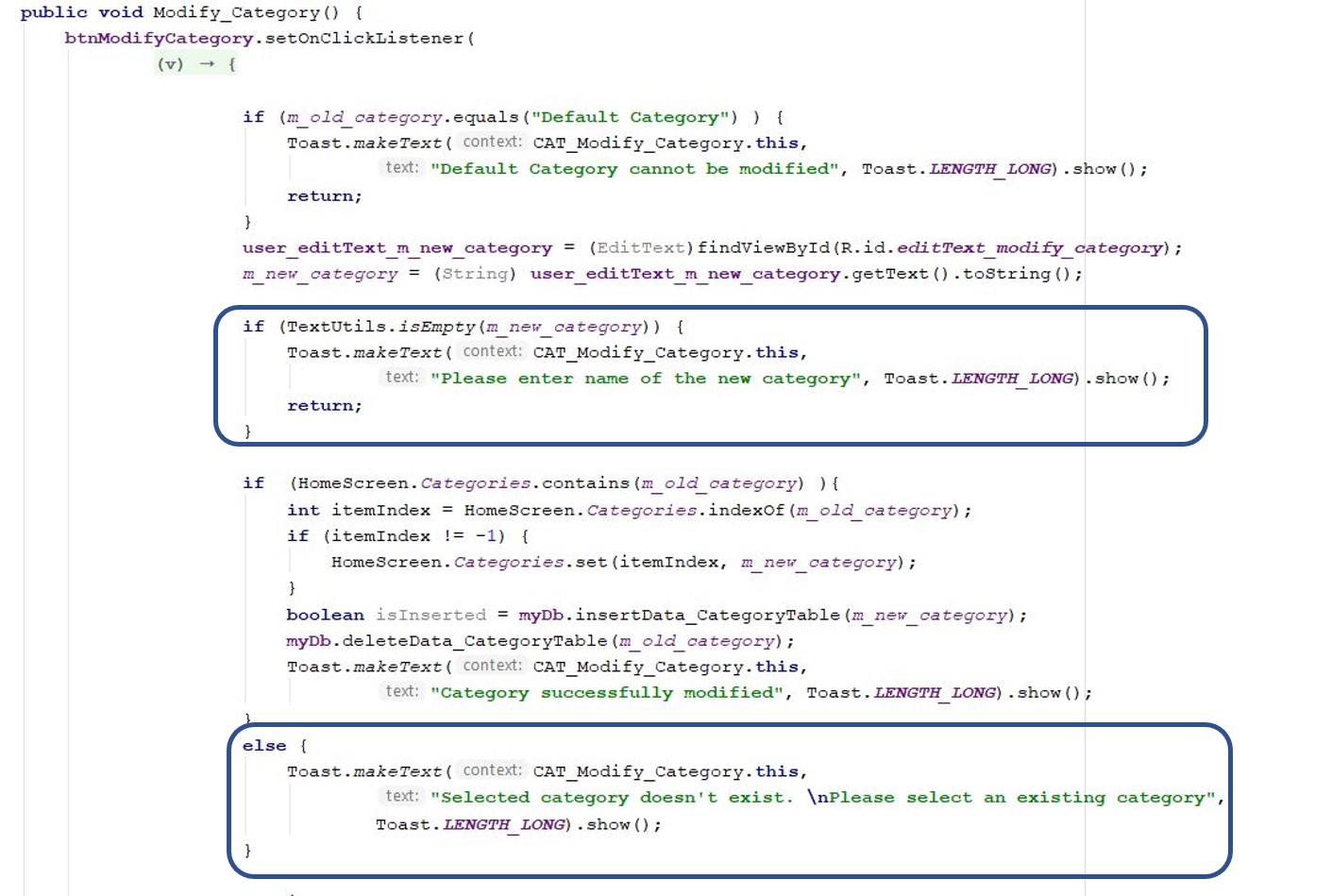
UT_CAT_10 - This test case checks if the user has selected a non-existent category to modify or delete. But it violates our design elements UD_CAT_09 and UD_CAT_17 which demand the user shall select a category only from the spinners provided in the activities. These spinners shall always have the existing categories as their values. Though the test case turned out to give as a ‘FAIL’, we were able to change the piece of code accordingly.
Check the following code-snippet of the method Modify_Category() for better understanding.
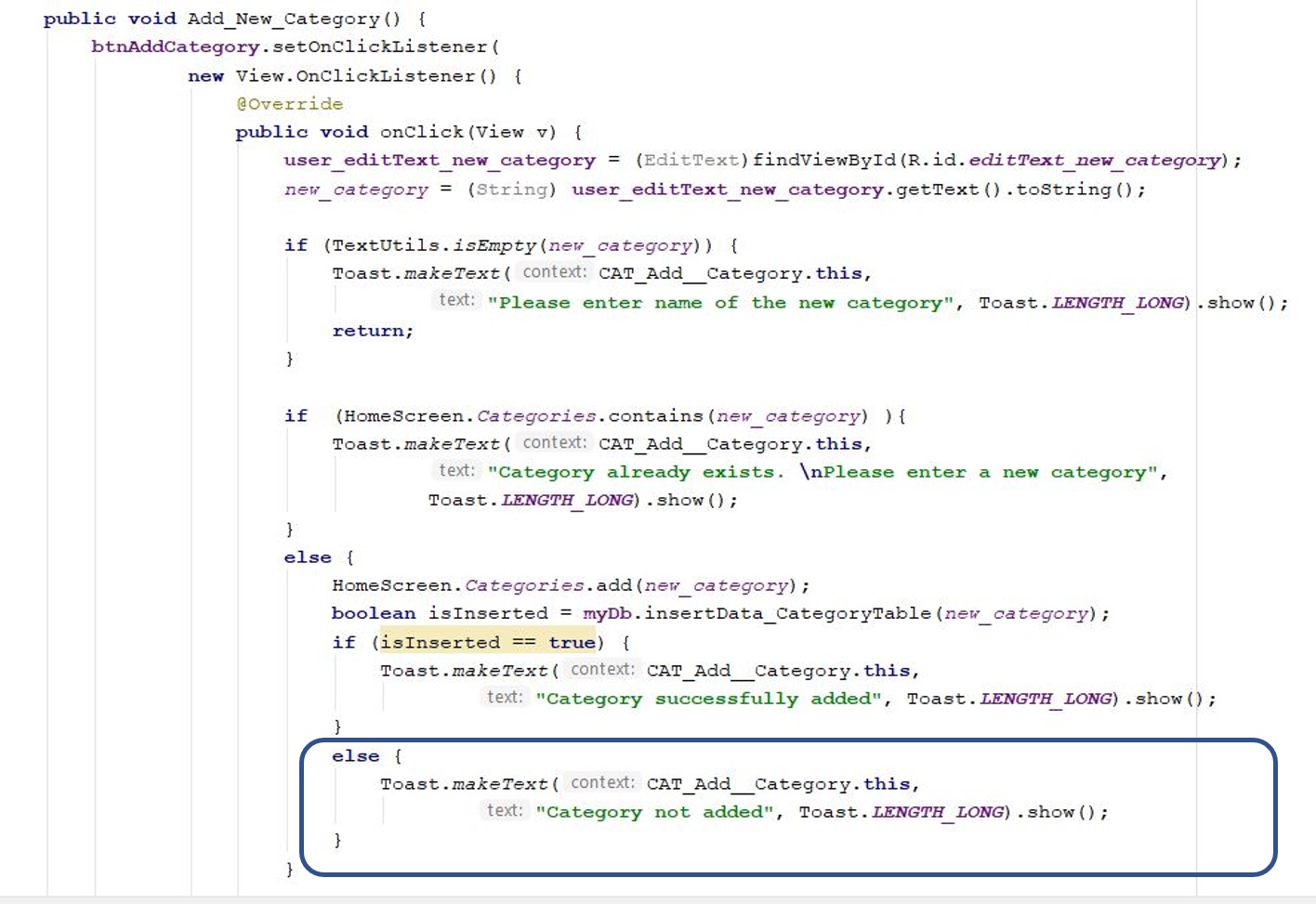
UT_CAT_07 - This test case checks if the new category entered by the user is inserted into the table ‘Category_Table’ in our main database. In case of a schema change there is a possibility that the user may have to clear the application cache and data in his device to reflect the changes of the database. In this case, the application throws a toast with the message “Category not added”. But since schema change is only in scope of development phase, this message has little to no impact on the end-user. Nevertheless, the piece of code is retained on expectation of a schema change in the future (at least from a developer’s perspective).
Check the following code-snippet of the method Add_New_Category() for better understanding.
Inferences from White-Box Testing - Coverage
Considering the result of UT_CAT_10, we changed the code to achieve 100% C0 (Statement) and C1 (Branch) coverage for our epic ‘My Categories’. But on a normal run, the following line shall never be executed (owing to the reasons as explained against UT_CAT_07). Branch and statement coverage shall drop accordingly. However this drop is negligibly small.
3. Black-box testing
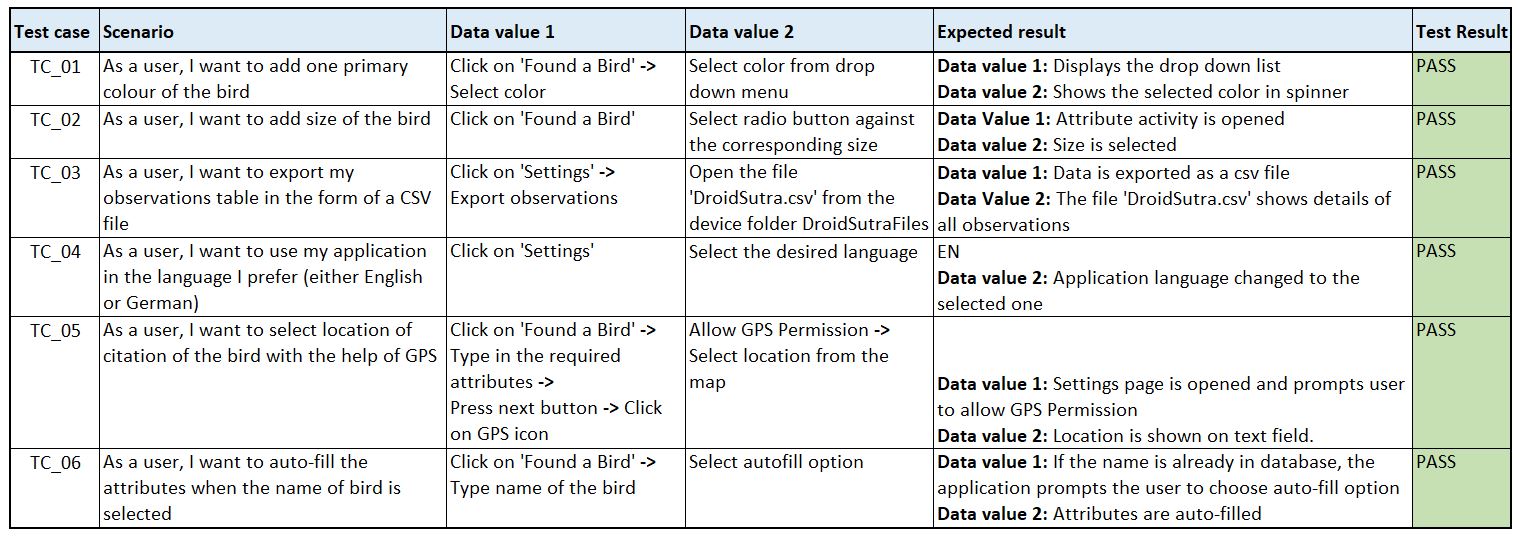
Black box testing is used to test the software without any knowledge of the code. A black box software tester selects a set of valid and invalid input and code execution conditions and checks for valid output responses, but he is not aware of how the application actually processes internally.
4. Summary of changes
The following changes are brought after the release of our Advanced Prototype:
… Multi-language support throughout the application. User can now choose either GERMAN or ENGLISH to use the app.
… ‘Settings’ activity is implemented where the user can perform the following functions:
a. Allow or disallow the use of device location to fetch the location of citation of the bird.
b. Choose the application language - GERMAN and ENGLISH.
c. Export observations in the form of a .csv file.
d. Delete observations data earlier than 6 months.
… Name suggestion feature is implemented along with auto-fill feature. These suggestions help the user to enter name of the bird by providing with names from a general database. Auto-fill feature helps the user to fill attributes of the bird automatically if it is already cited and stored in the database.
… Improved GPS location feature. The user can now set the location of citation of bird by the following methods:
a. Choosing the current location if device location is enabled.
b. Choose a location by dragging the marker.
c. Typing in the name of a place.
With numbered days ahead to our final release, it is time for a very short break. When we come the next time, we’d bring with us a brand new application to help you track birds at a single tap of your finger. Stay awesome, until then.
Mit freundlichen Grüßen,
– Team DroidSutra