Welcome to our fourth blog, which concentrates entirely on the testing the app we developed against various scenarios using different methods of testing like black box and white box testing. The testing is done in order to make sure we developed an application that is fully functional and bug free. We are fully devoted to deliver an application which is safe enough to get you home safely.
Testing procedure
Testing is an integral part and milestone in this whole app development which can make or break the whole app development journey of ours, in making your journey back home safe. We have defined various scenarios to test the functionality of our application as well as taking into account the bugs in our code, by performing a source code analysis.
Testing Methods employed:
The testing methods we have used can be classified into two broad groups:
- White box testing: A set of testing practices which revolves around the source code which needs a knowledge on the internal code.
- Black box testing: A set of testing practices which revolves around the functionality of the application regardless the knowledge on internal code.
Based on Black box testing ideology, we decided to perform:
- Functional testing.
- Integration testing.
- Acceptance testing.
Based on white box testing ideology, we decided to perform:
- Source code analysis.
- Unit testing.
- Integration testing.
Functional Testing using Black box method
We have decided to test our application against five classes keeping our client requirements in mind. And we decided to use Login class, Register class, Add Followers class, Maps class, Auto complete Suggestions class, Notifications class.
1. Login class:
Our first page on the application once you install and open our application is the login page which has three methods and two input fields respectively. which are:
- Email input field.
- Password input field.
- Login method.
- Register method.
- Forgot password method to reset the password.
Testing Scenario 1:
Tried logging in without registering myself.
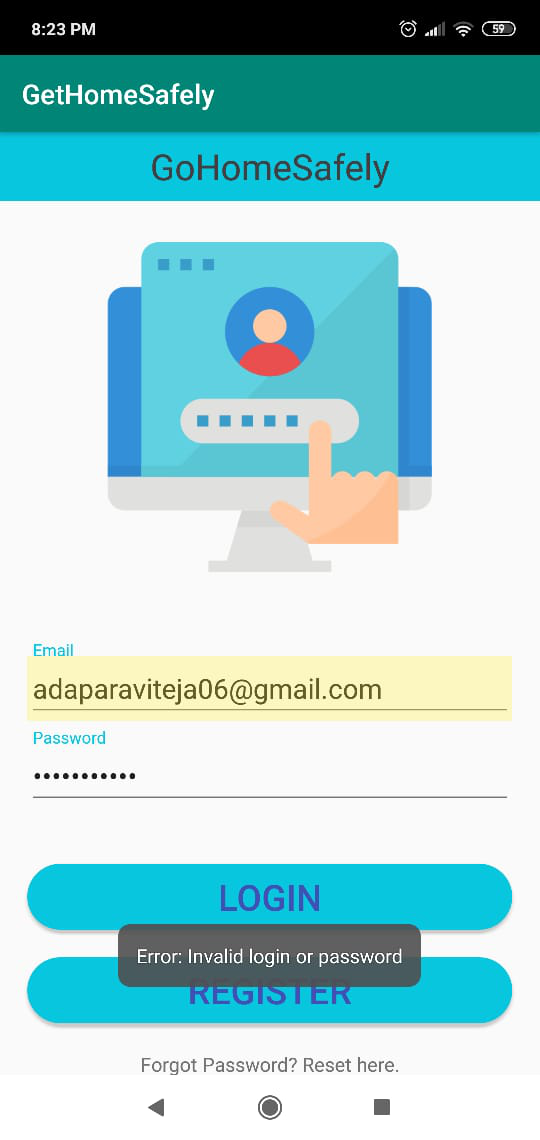
- Error: Invalid login or password.
- Status: working as expected.
- Resolution: Register first.
Testing Scenario 2:
Tried logging in after registering myself with a wrong password.
- Error: Invalid password.
- Status: working as expected.
- Resolution: Enter correct password.
Testing Scenario 3:
Tried logging in after registering myself with the correct password.
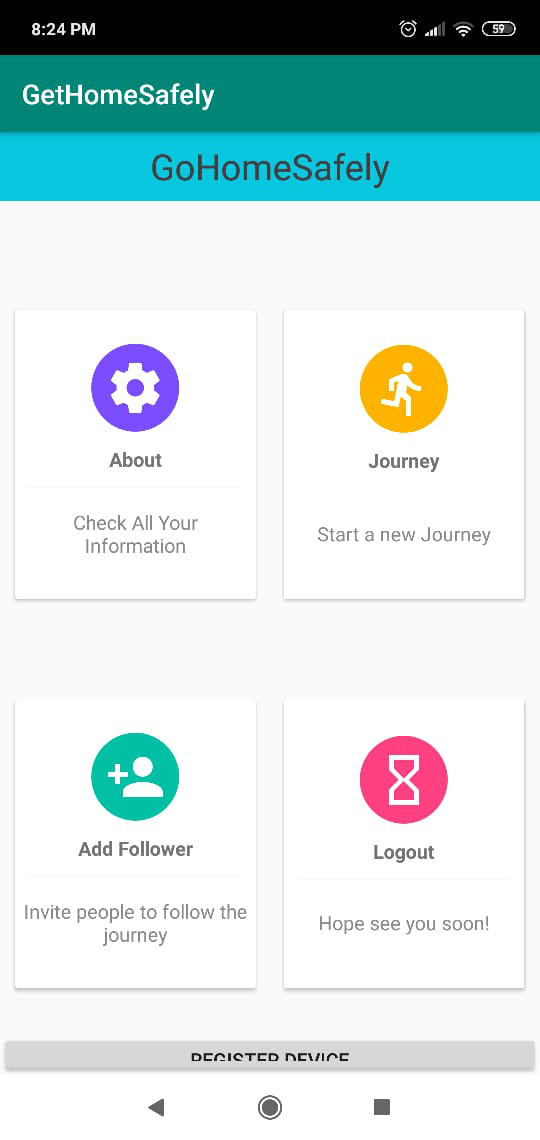
- Error: Nil.
- Status: Working as expected.
- What happened next: I was taken to the journey page.
2. Register class:
Register class has five input fields and one register method which will take you back to the login page post registering
Scenario:
Tried registering myself by giving my details in the five input fields which are Name, Email, Phone number, Password, re-enter Password.
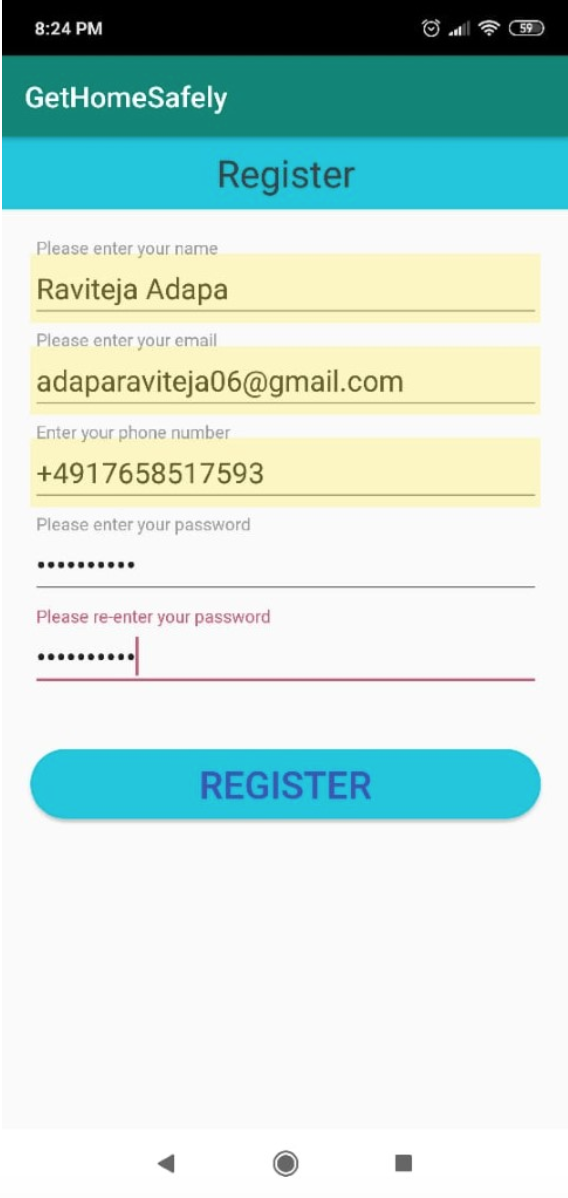
- Status: Working as expected
- Error: Nil
- Method called: Register
- What happened next: I was taken back to the login page
3. Get MAPs Class:
Post registering myself and logging in with Email-ID and numerical password I was taken to the main page of our application which has 4 methods About, Journey, Add follower, Log out.
Scenario 1:
I clicked on Journey and was taken to a map integrated page with four methods namely Get Direction, Pause, Cancel, SOS and one input field called search where you can enter your destination. User explicitly needs to give permission for the application to access device’s location.
I clicked on search field and my keyboard popped automatically and the search field was highlighted.
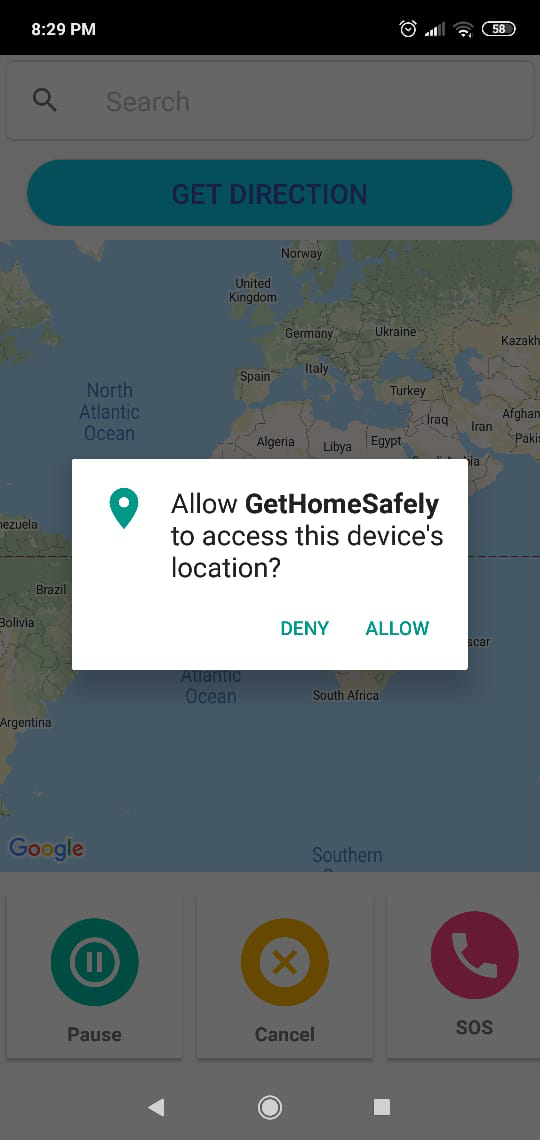
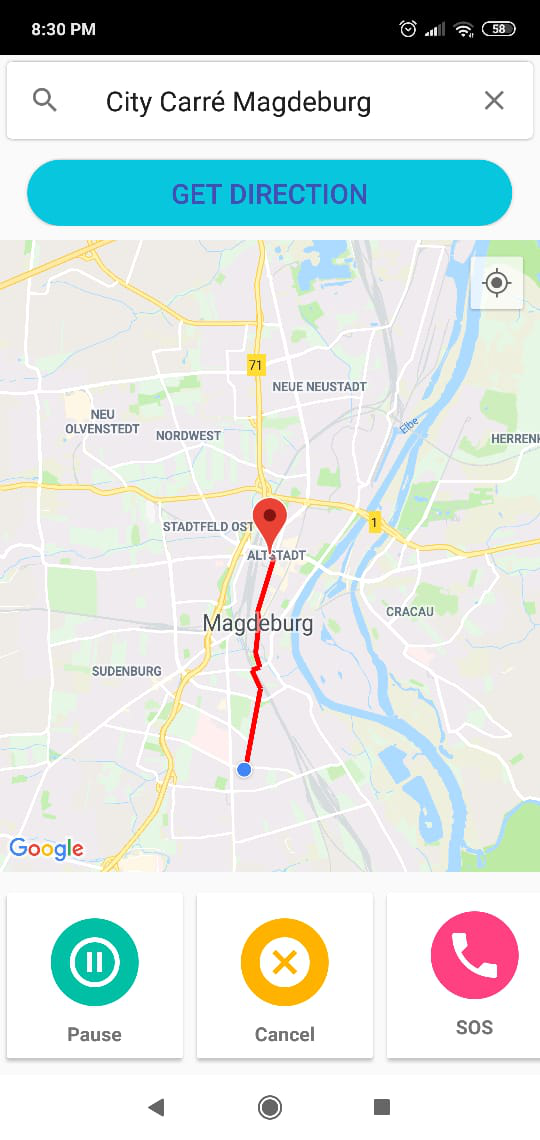
- Entered: City Carre in the search field and clicked on City Carre from auto complete suggestions.
- Method Called: Get Directions
- Results: Directions appeared on my map with red colored navigation.
- Status: Working as expected
- Error: Nill
Scenario 2:
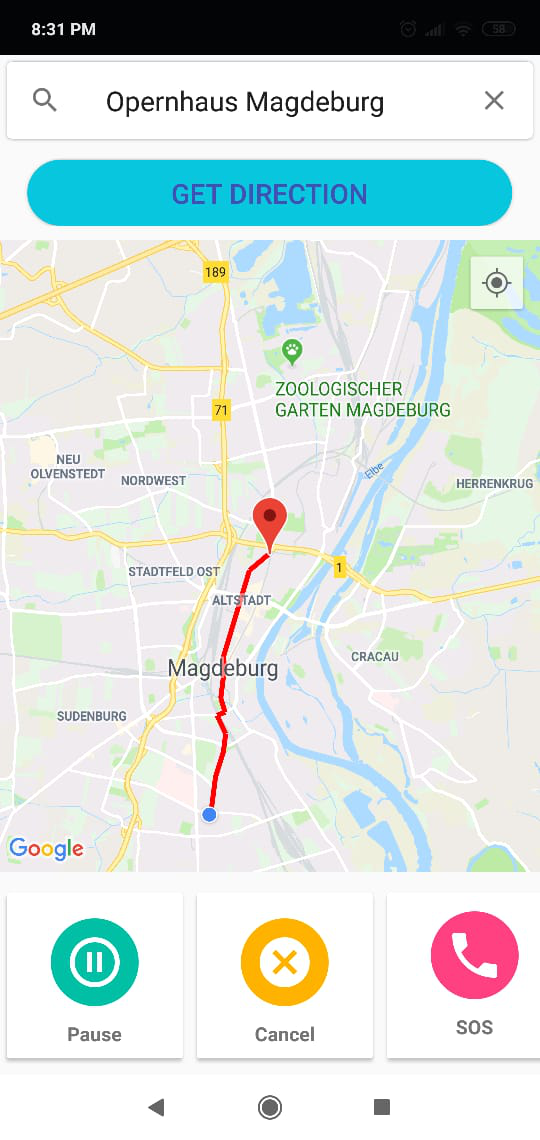
- Entered: Opernhaus in the search field and clicked on Opernhaus from auto complete suggestions.
- Method Called: Get Directions
- Results: Directions appeared on my map with red colored navigation.
- Status: Working as expected
- Error: Nill
4. Add Follower Class:
Add Follower class is integrated on the Main page where you can select your followers before or after selecting destination for your journey.
Scenario:
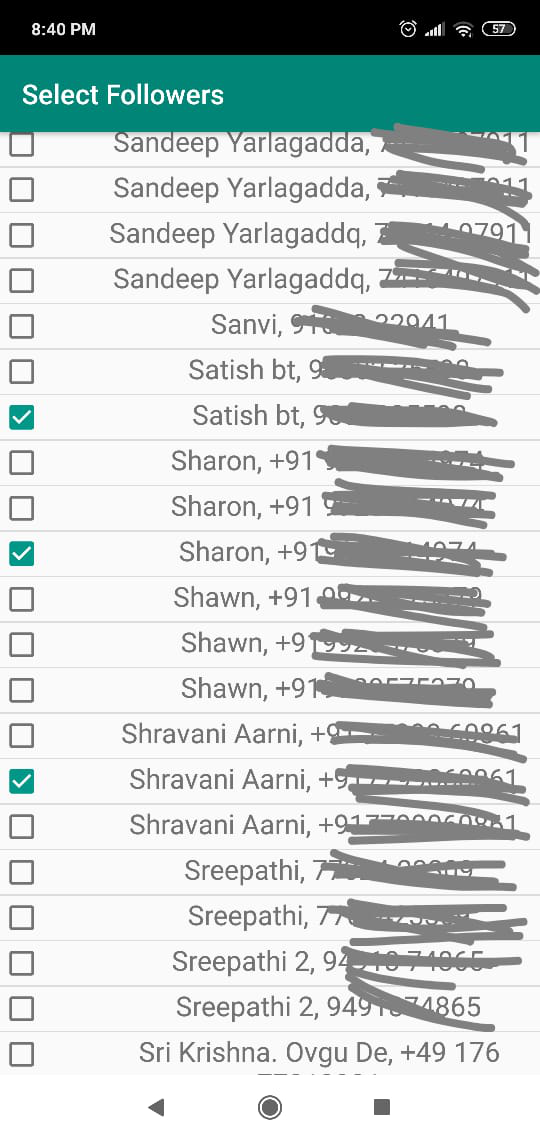
Clicked on Add Followers method and was taken to another page where I need to give explicit permission for the application to access phone contacts and can select contacts appeared in row wise fashion.
I selected three contacts and returned to home page by clicking back button on the phone.
And on click of back button on my phone I was taken back to the main page where I can resume my Journey selection.
- Status: Working as expected
- Error: Nil
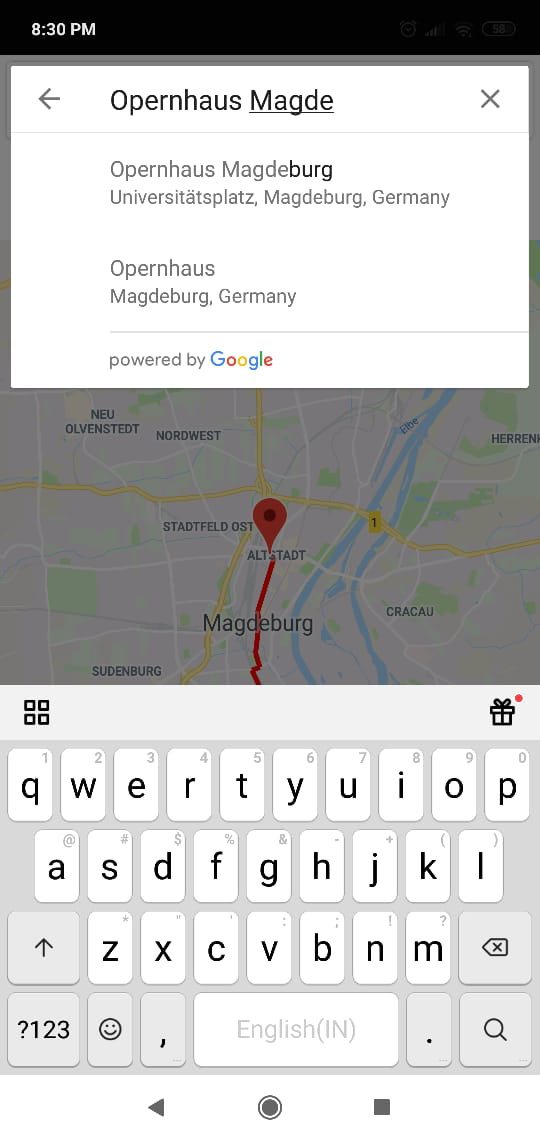
5. Auto Complete suggestions Class:
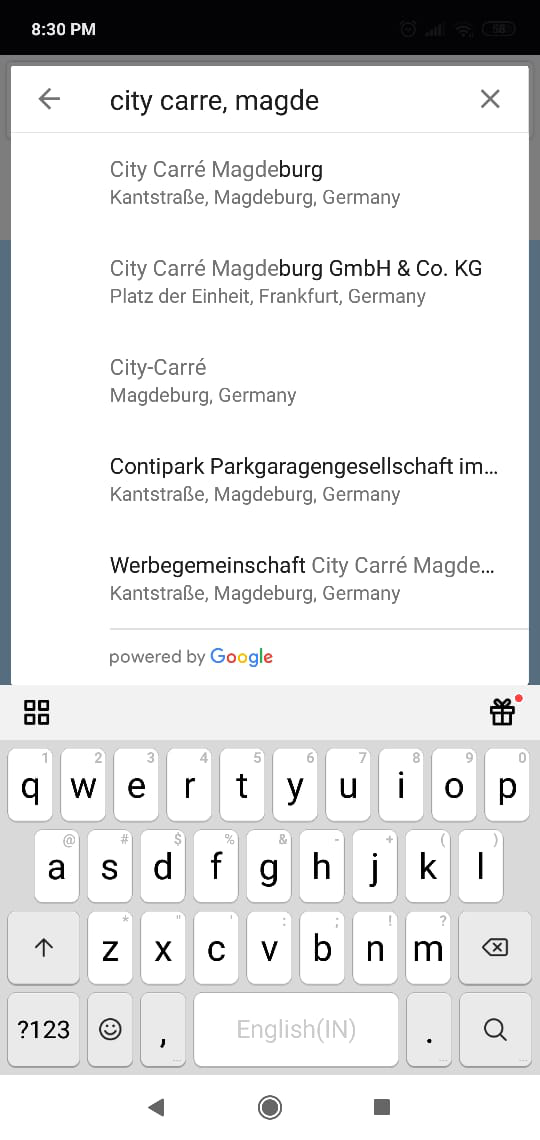
Auto complete enables us to search our destinations faster which is powered by google. Autocomplete is enabled with the search input field in the Get Maps Page.
Scenario 1:
- Entered: City Carre, magde in the search field and auto complete suggestions appeared and clicked on City Carre, magdeburg from auto complete suggestions.
- Status: Working as expected
- Error: Nil
Scenario 2:
- Entered: Opernhaus, magde in search field and clicked on Opernhaus, magdeburg from auto complete suggestions.
- Status: Working as expected
- Error: Nil
6. Notification Class:
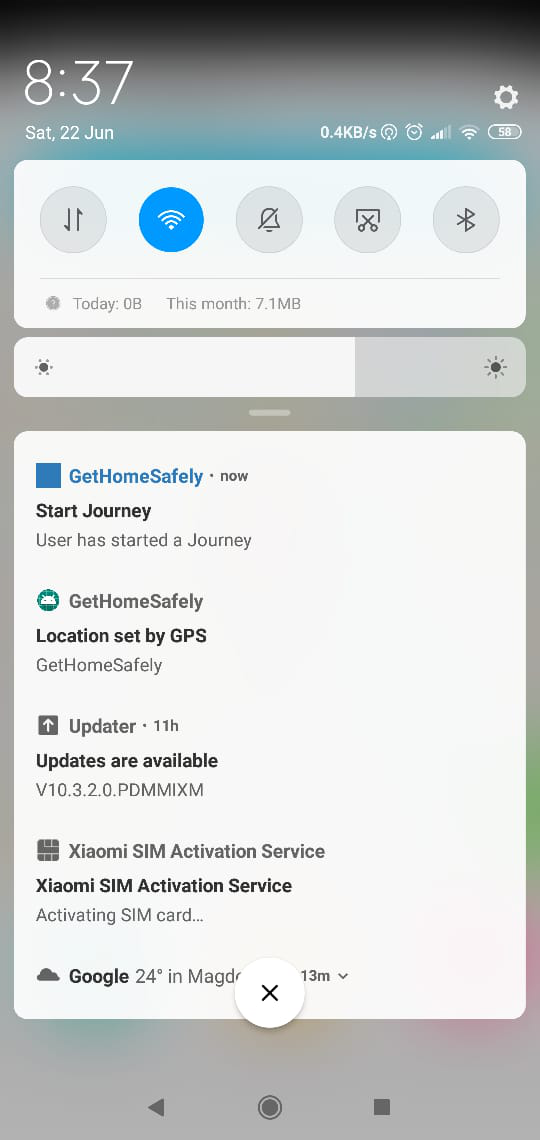
Notifications are the backbone of our application which is integral to the entire purpose of having a journey tracker.
Scenario:
Gave explicit permissions to access phone’s location and started a journey. Auto sample notifications popped up in my notification bar.
- Status: working as expected
- Error: Nil
White box testing for various integral components of the applications
Case 1: Login Class:
When a user installs and opens our application, and enters his email id and password, the methods etmail.getText().tostring().trim() and etpassword.getText().tostring().trim() fetches the input feed and checks if the feed exists in our database and gives back a response “logged in successfully” or “Error:Invalid username/password” if it’s a new user or if password or username entered wrongly.
- Lines: 71 to 107
- Errors: Nil
- Status: Working as expected

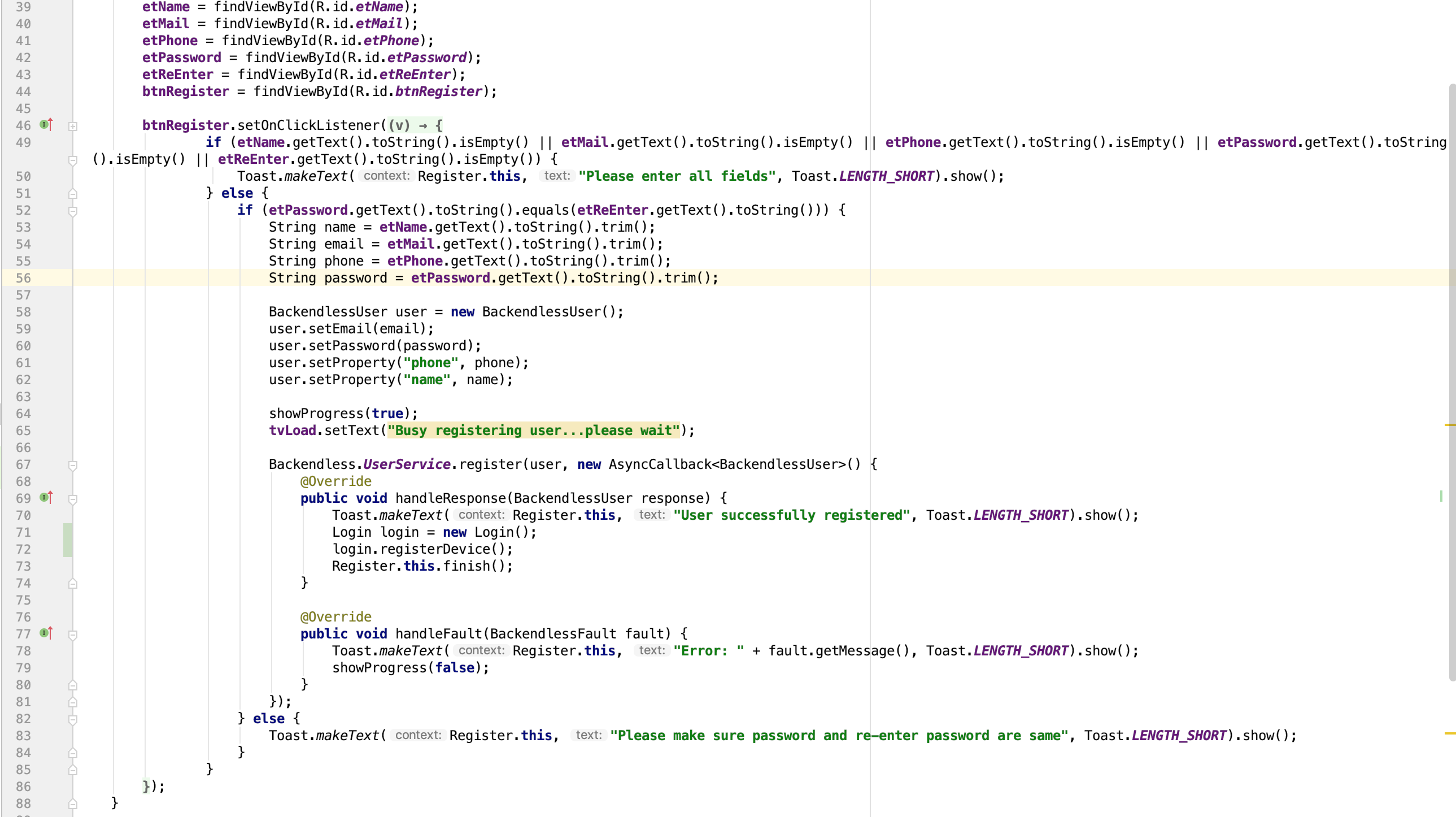
Case 2: Register Class:
When a user tries to register, methods from line 53 to 56 fetches the details and stores in our database and when done shows a message “User successfully registered”.
- Errors: Nil
- Status: Working as expected
- Lines: 46 to 88
Case 3: Auto Complete Class:
When a user tries to search for a destination in the search field on the Journey page, methods place.getId() and place.getName() takes the input alphabets and suggests the place by passing the values into log.i() method and user receives an auto suggestion.
- Errors: Nil
- Status: working as expected.
- Lines: 138 to 158

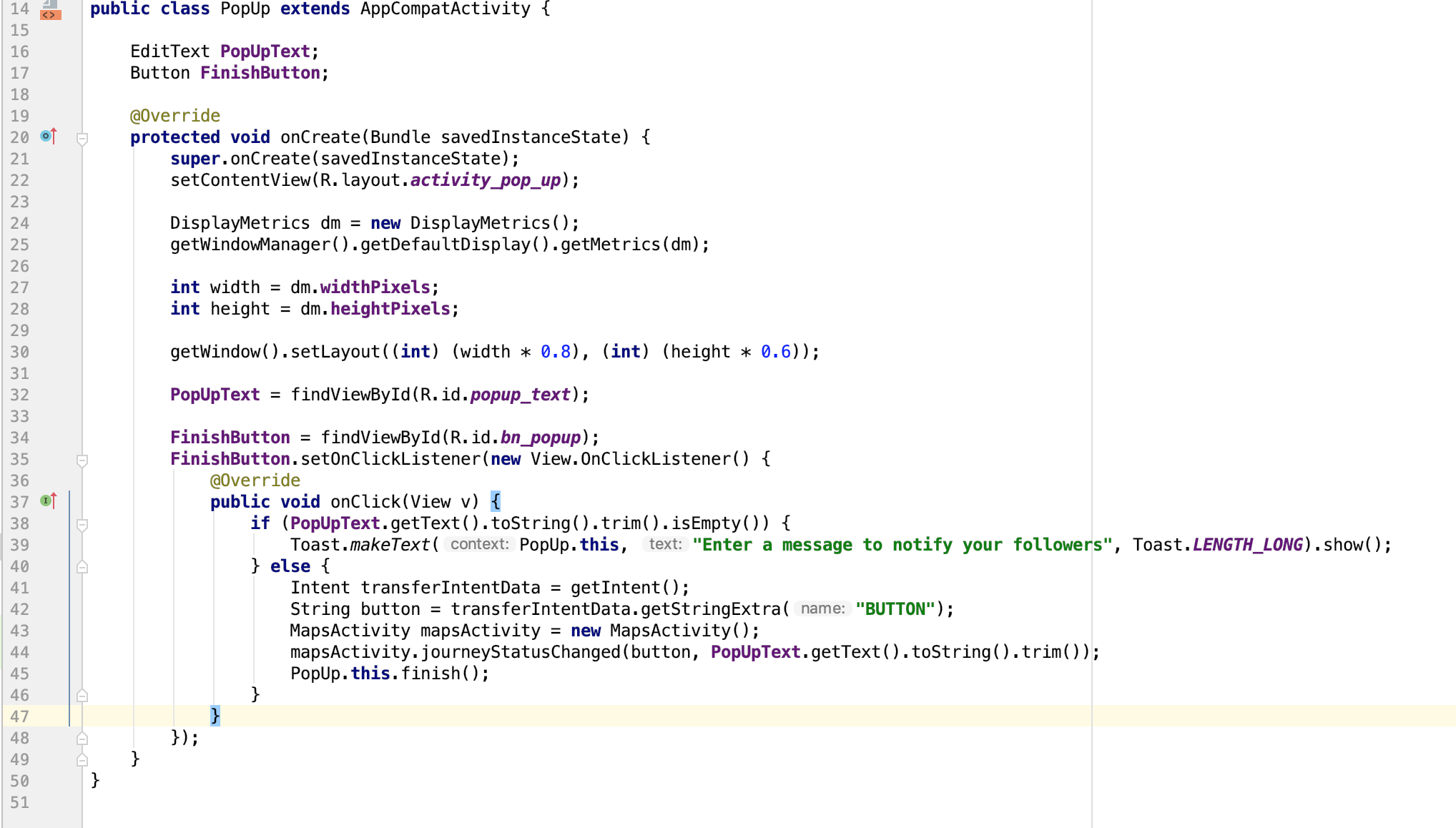
Case 4: Pop Up Class:
Pop up class is used for Pause and Abort features to ask the user for a reason to pause/ abort.
When clicked pause/abort once user receives a popup window with text “Enter a message to notify your followers” when same button clicked again, he’ll be shown pause or abort button.
- Errors: Nil
- Status: working as expected
- Lines: 14 to 50
Case 5: Notifications Class:
Notifications will be sent when a user registers, starts journey, pauses, aborts, Notifies.
- Errors: Nil
- Status: working as expected
- Lines: 263 to 353
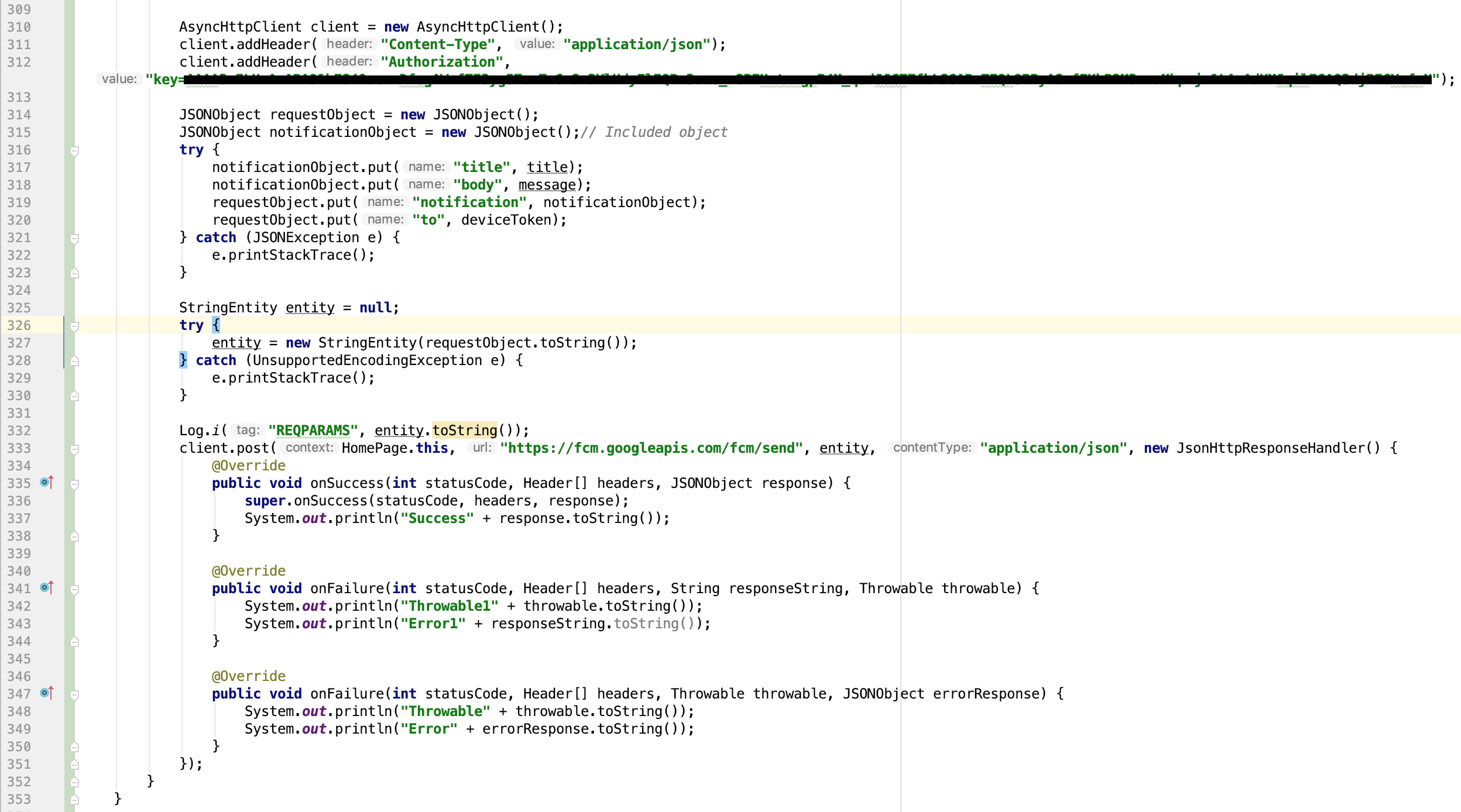
This concludes our Functional testing using Black box ideology and component/ class testing using white box ideology and we can say with confidence that our app is fully functional.
Unit Testing
We have tested and resolved the errors in the code which were failing few of our unit components and we can say all the individual unit components are working now. White-Box testing method was used for this testing. Example: Front End Map integration with Journey Class.
Integration Testing
Unit components that are required to integrate with other unit components are integrated and tested in sound manner. White-Box and Black-Box testing methods were used for this testing. Example: Integrating Auto complete suggestions in our search bar on the Maps page.
Acceptance Testing
Acceptance test is another integral part to get a validation from the customer that we developed the application as per his requirements. We showed our application to the customer every week based on the progress and we are good so far. We would get the final acceptance from our customer on the open market day when we exhibit our application to the customer and to other developers as well.
Source Code Analysis using Static Techniques
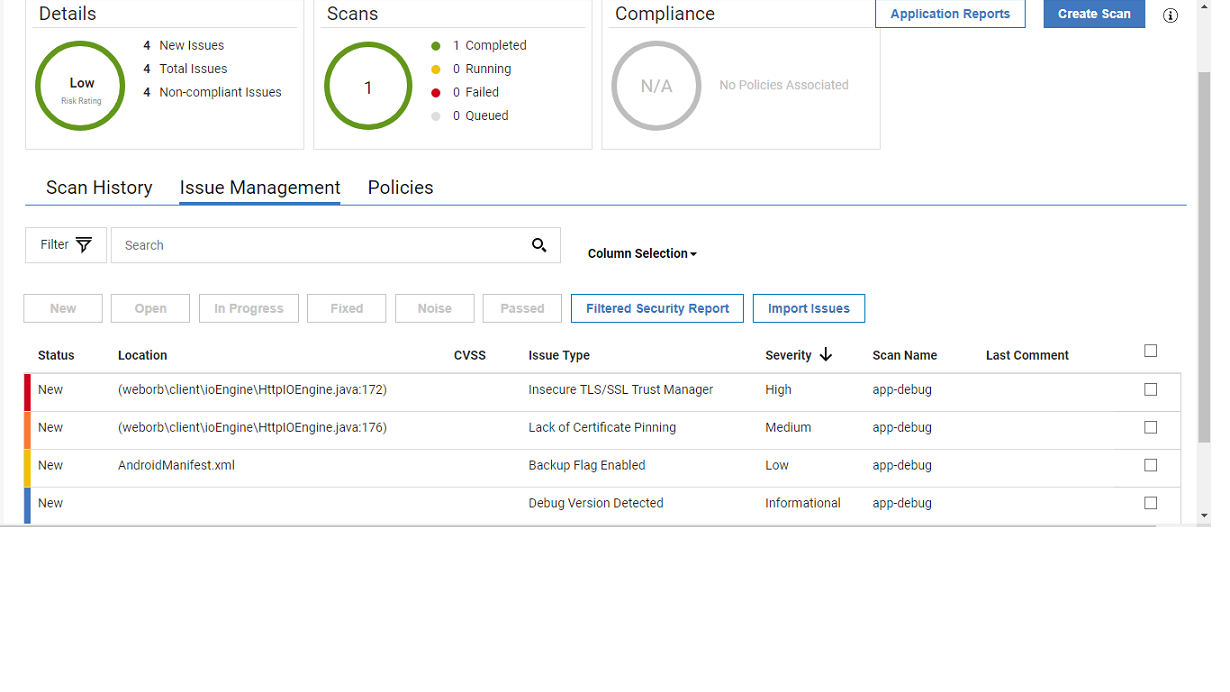
Source code Analysis is vital for any application to go live to make sure our code is bug free. We have performed source code analysis on our advanced prototype using IBM Application security on cloud-based application.
IBM Application Security on Cloud (ASoC) is a SaaS solution for all application security testing needs. It consolidates all IBM Security’s testing capabilities into a single service that provides a uniform experience for all technologies. IBM Security ASoC can scan web, mobile, and desktop applications using dynamic and static techniques.
We have used static techniques that are meant for testing the internal code, as we have used the java platform to build the code, we have used the IBM ASoC against .apk files.
- Scan start: 6/19/2019, 8:00:13 PM
- Scan end: 6/19/2019, 8:32:00 PM
- Duration: 31.8 minutes
- Issues/ Bugs: 4
- Issue categorization:
- High Priority: 1
- Medium Priority: 1
- Low Priority: 1
- Informational: 1
Bugs
1: Insecure TLS/SSL Trust Manager
- Priority: High
- Fix: We deployed a SSL certificate for our application to fix this issue.
- Status: Fixed
2: Lack of Certificate Pinning
- Priority: Medium
- Fix: Certificate pinning can be handled through a SSLSocketFactory.
- Status: It will be resolved in the final version of the application.
3: Backup Flag Enabled in androidmanifest.xml
- Priority: Low
- Fix: Set the ‘android:allowBackup’ attribute under the Application tag in the Android Manifest file (AndroidManifest.xml) to “false”.
- Status: It will be resolved in the final version of the application.
4: Debug version detected
- Priority: Informational
- Fix: Not required for the sake of this course project application.
- Status: As this is just an informational bug and as we are not taking this application on play store, we do not need to fix this currently as its not live yet.
By performing the black box and white box testing methods we arrived at a conclusion that our application is safe enough and with almost no bugs and functional defects that would hinder a user from using it effortlessly.
Summary of Changes
The following changes were made to the application:
- New layouts and UI design has implemented.
- Selection of target devices based on user’s follower selection.
- Earlier we planned on just fetching Google maps data on a backend API for logical purposes but the functionality did not suffice our needs and in order to overcome an additional bottleneck in the network we integrated a Google Maps activity directly to our application.
Application APK Link Beta Prototype
That’s it for this time, thank you for reading and staying tuned for our final blog!
You will be impressed! !